
Goodbye Welcome
You can turn a goodbye welcome moment into a polished short clip from one clear reference photo of the people involved. The result is a vertical AI video that keeps faces, hairstyles, skin tones, bodies, clothing, and the number of people consistent while adding an optional prompt for the mood, setting, or small details you want to see.
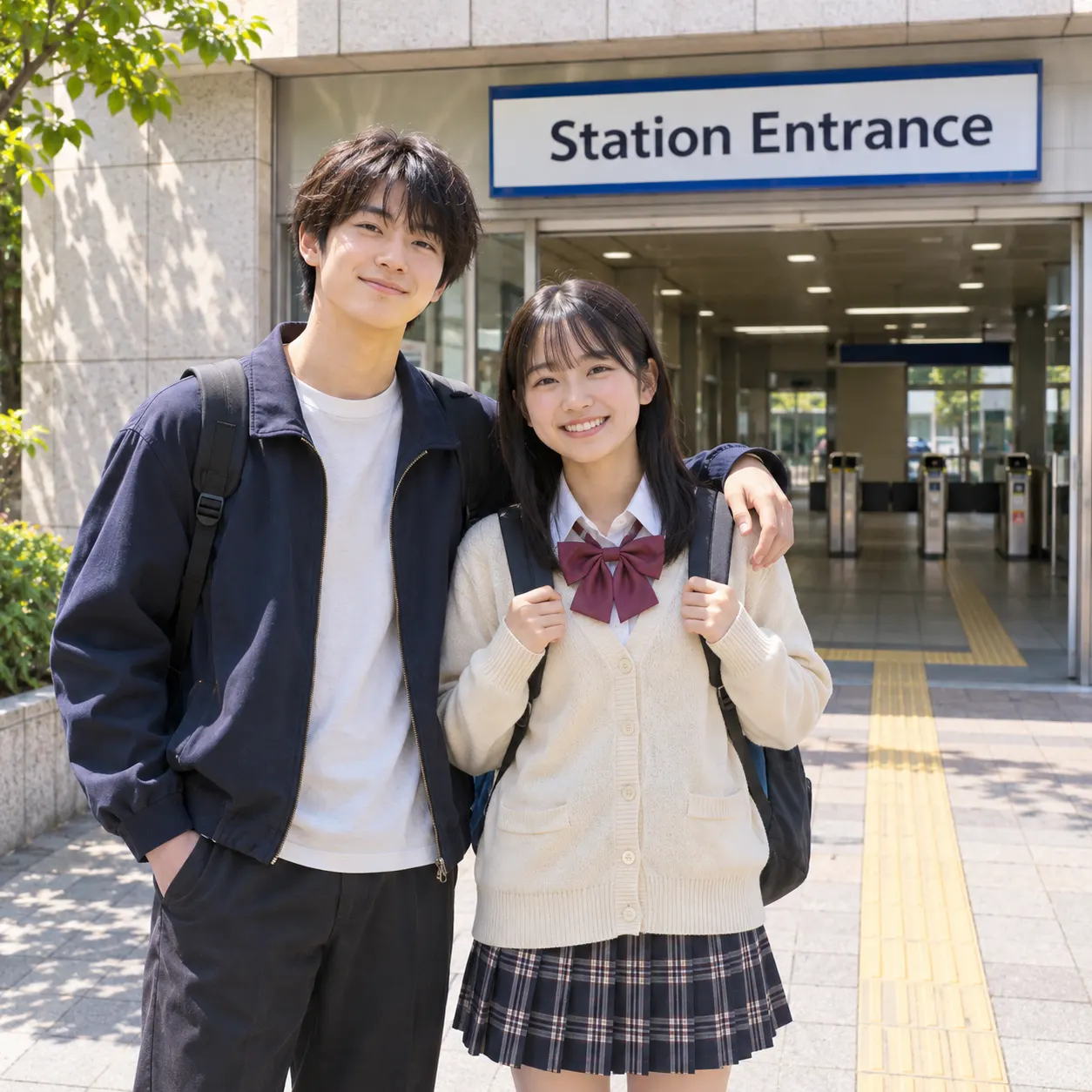
One clear photo: a solo shot or the two of you. Faces visible, no heavy filters
Tip: drag a photo onto its box, or click the box to pick one.
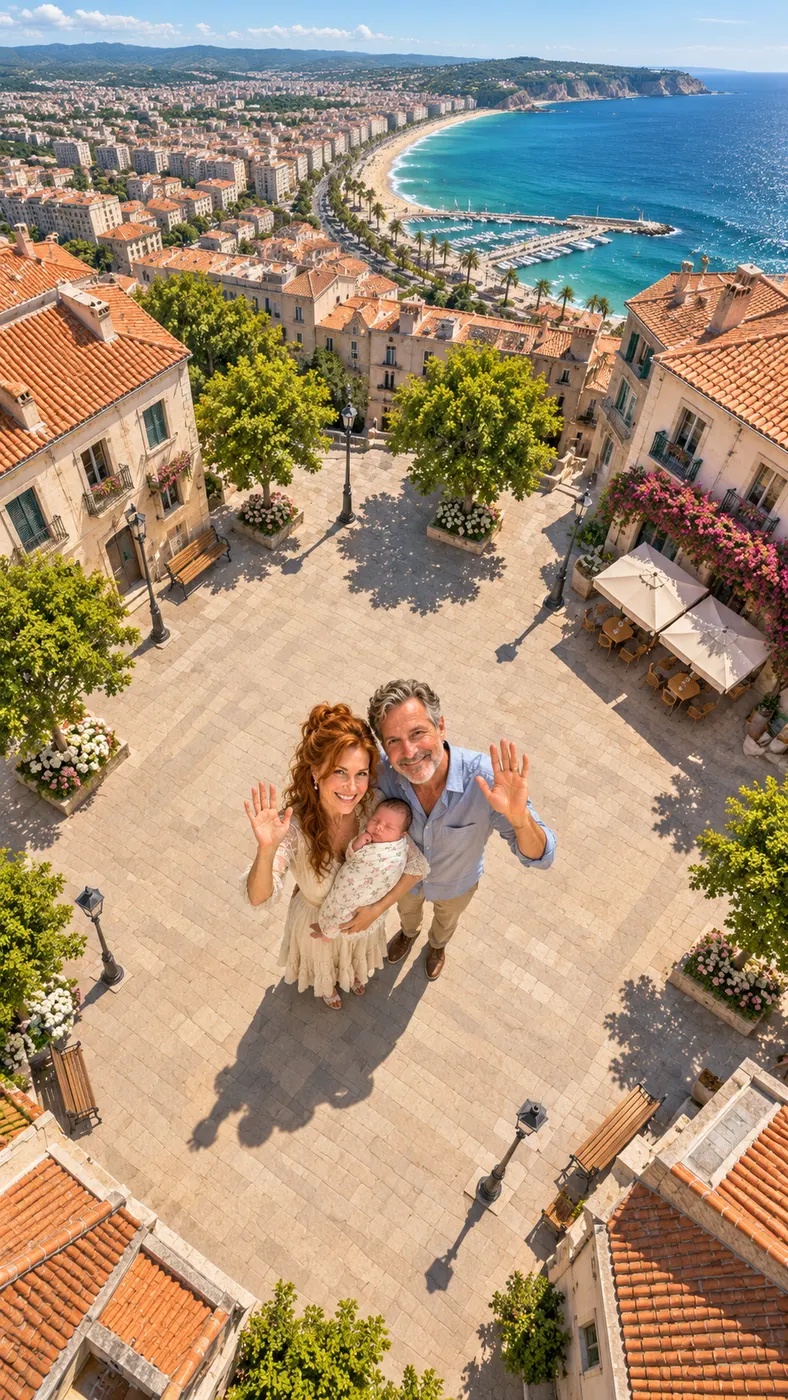
Earth zoom out · You wave from a plaza and the camera rises all the way to space.
This video: 29 credits · Credits come back if it fails
AI video effect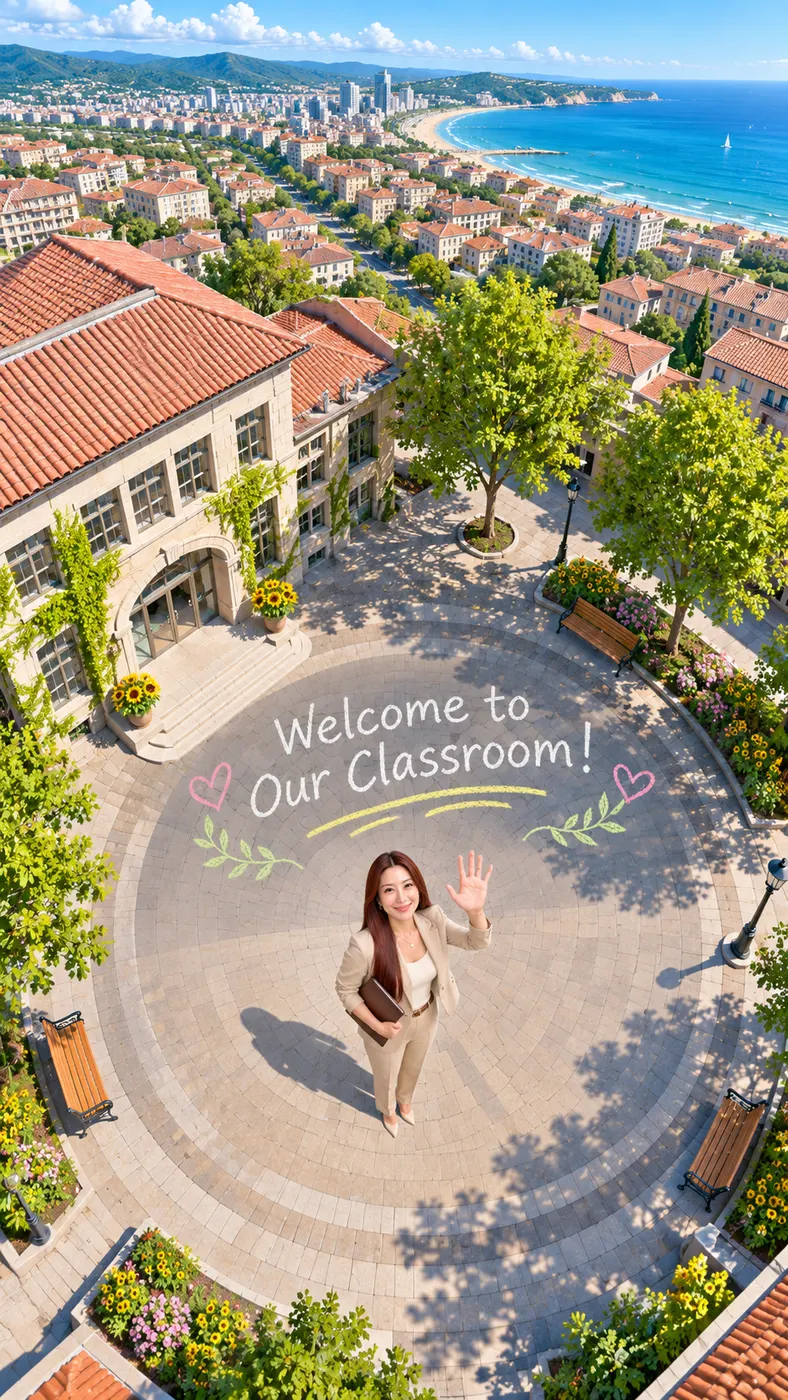

Goodbye Welcome Video Examples
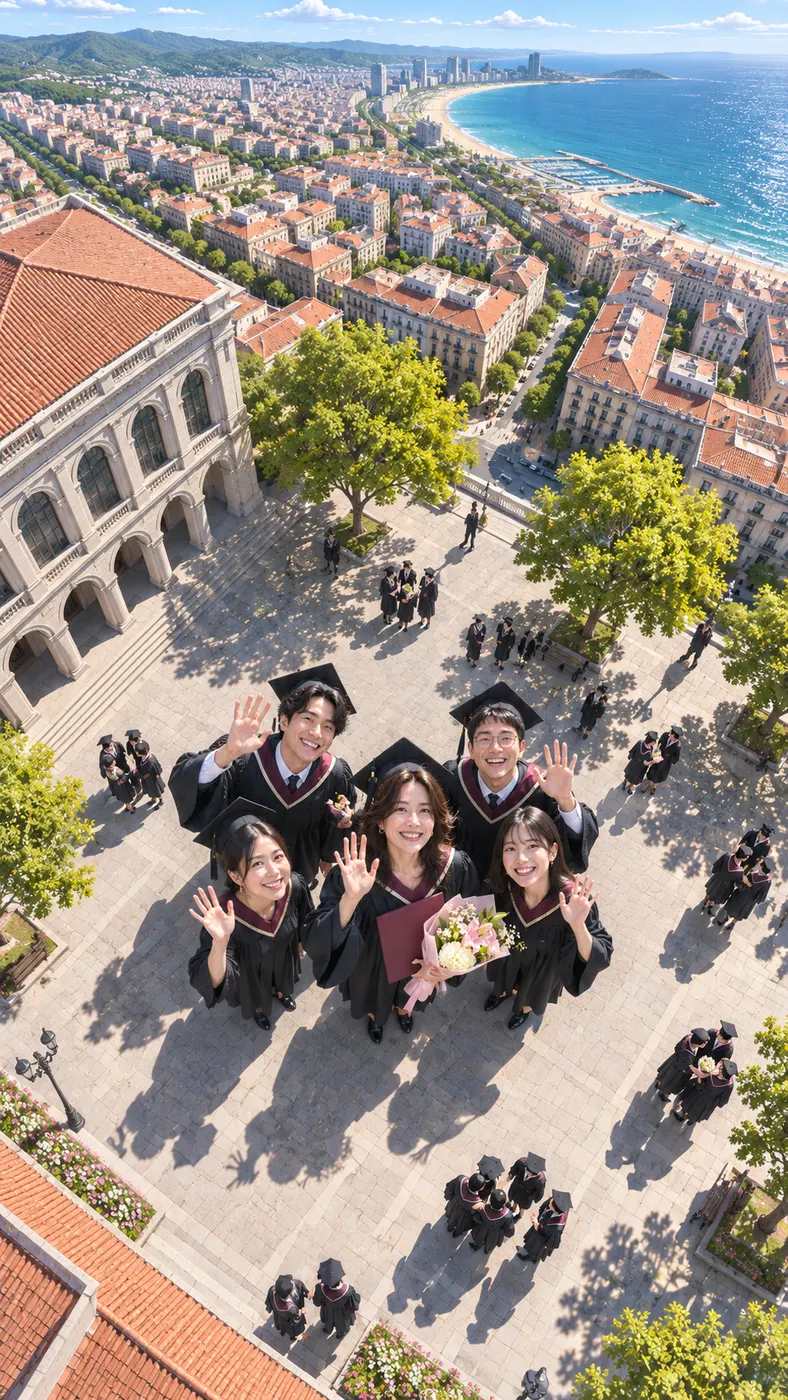
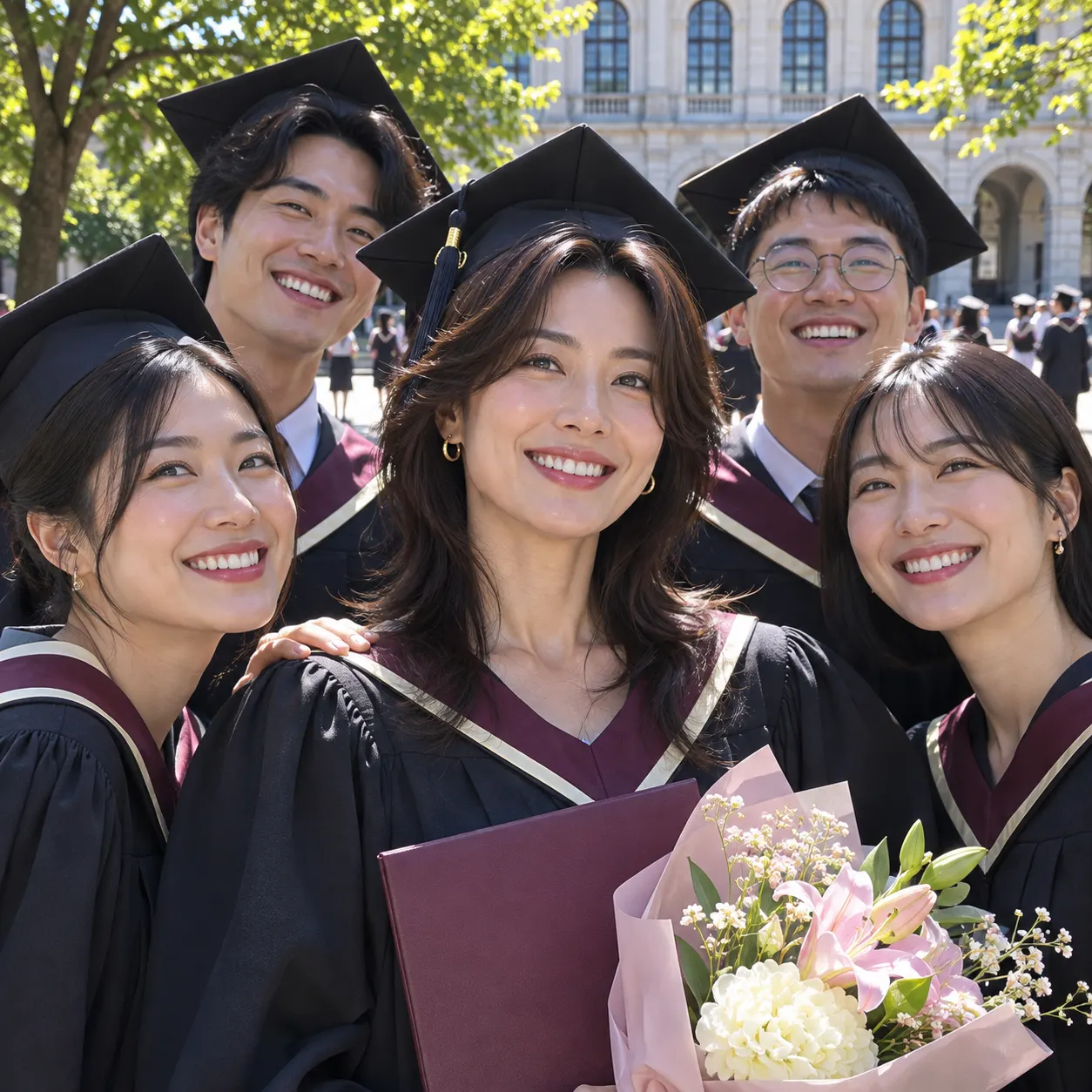
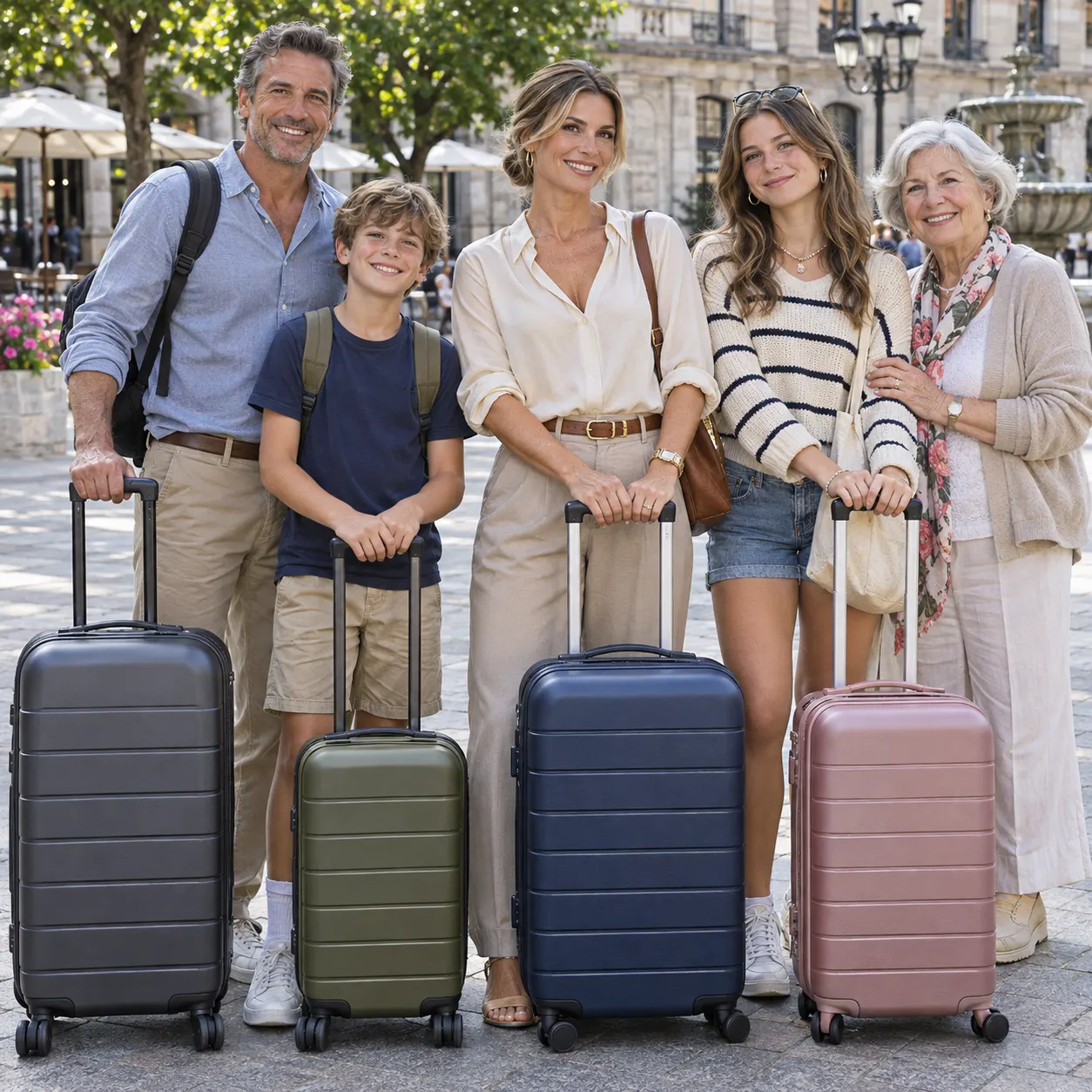
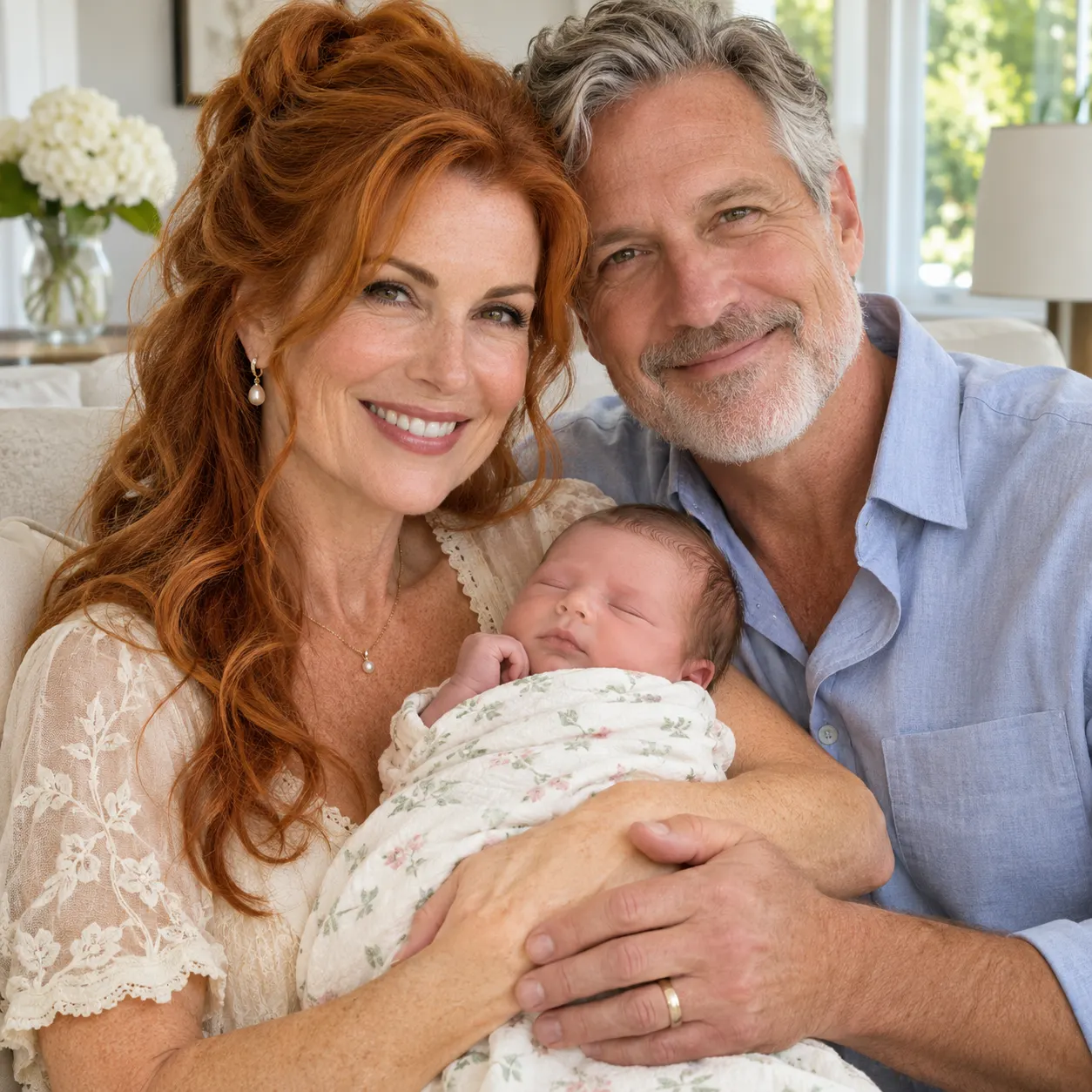
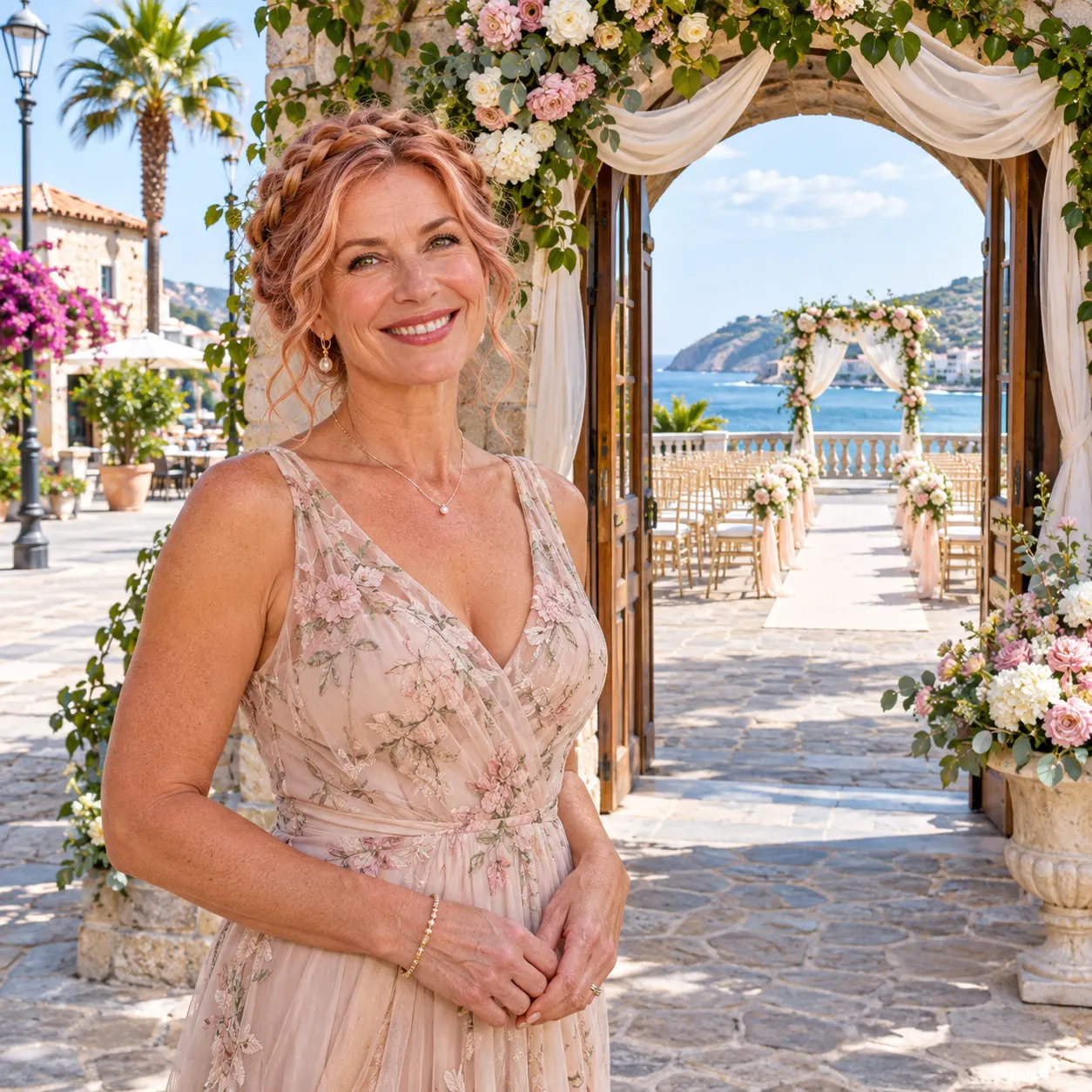
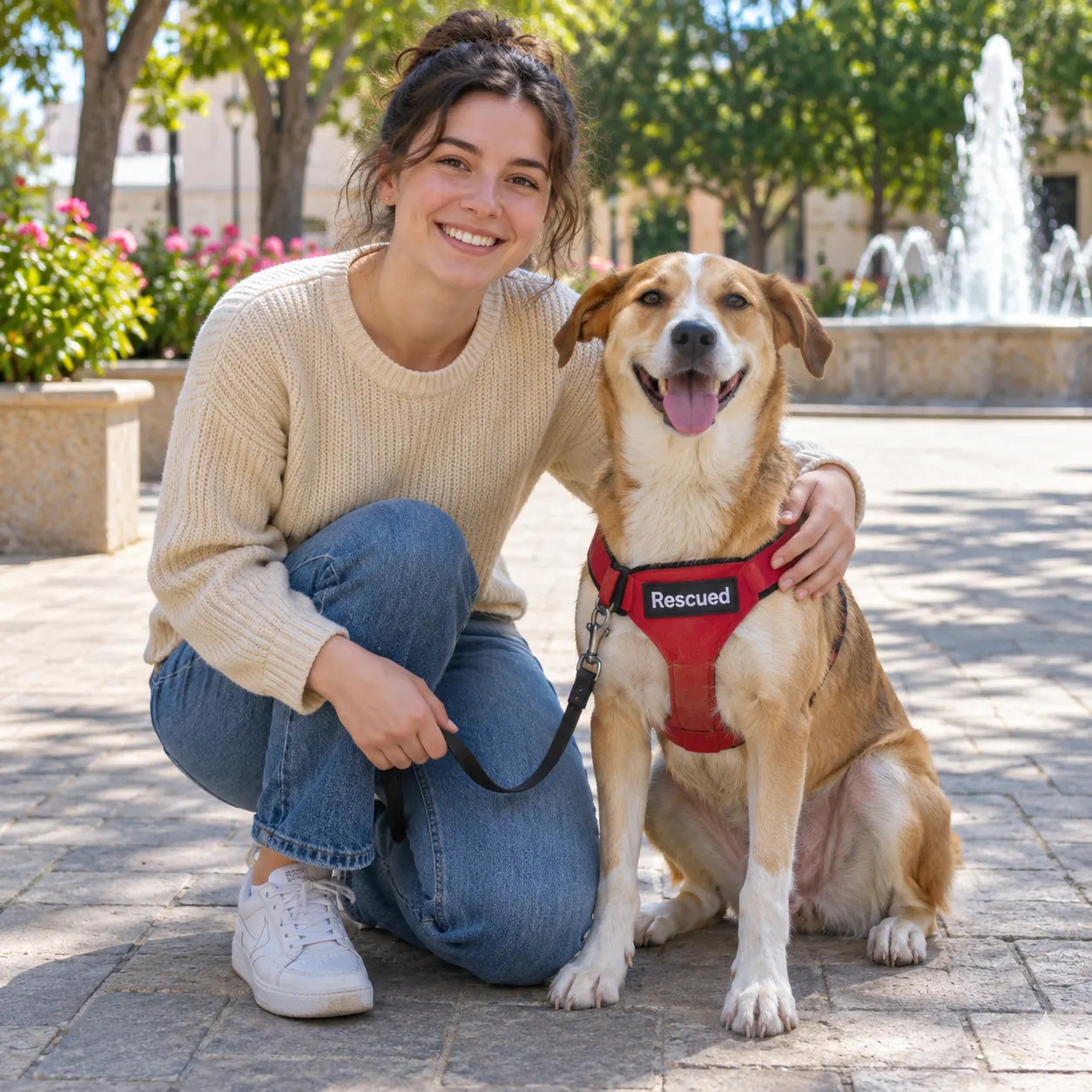
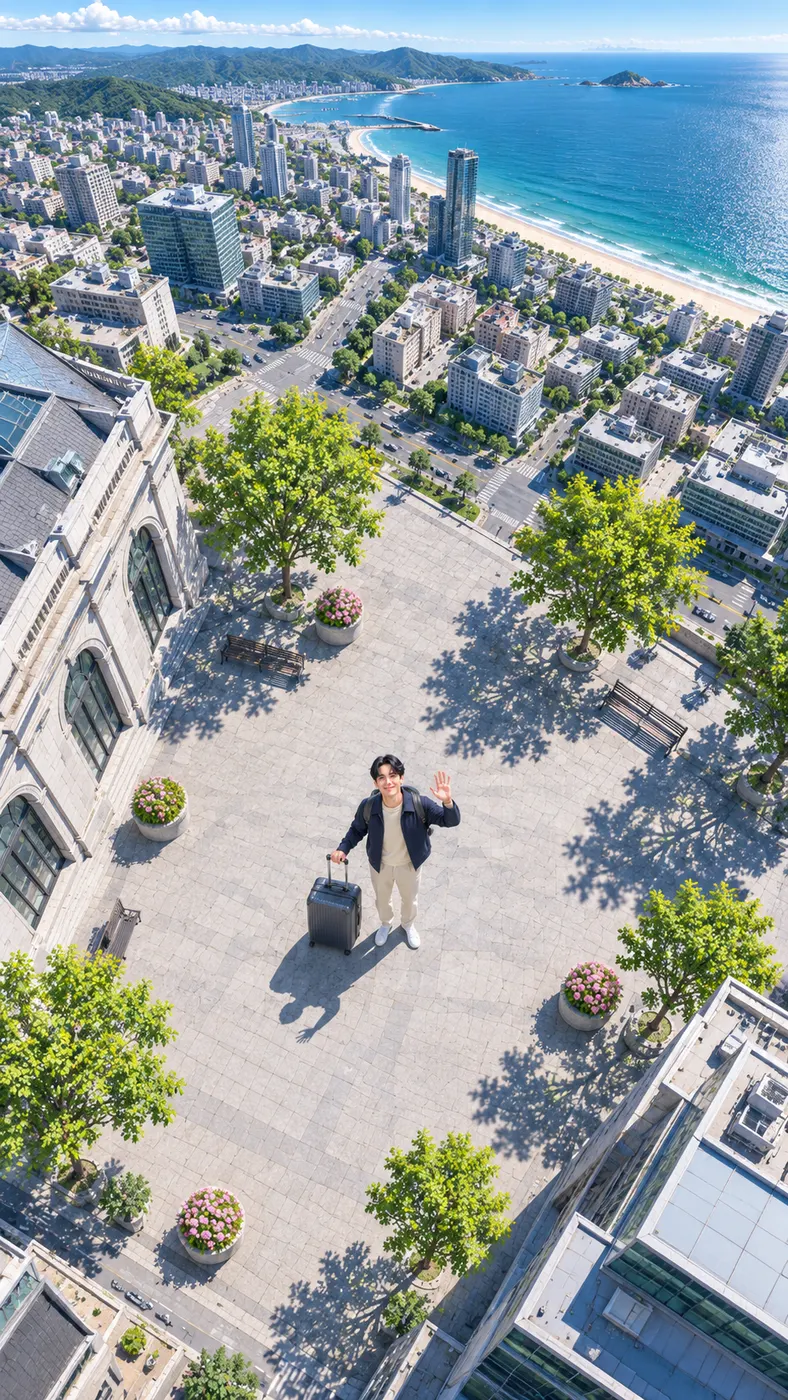
These examples show how a still photo can become a moving goodbye welcome scene: the subject stands in a sunny city plaza, waves up at the camera, and appears in a continuous pullback through rooftops, city blocks, coastline, clouds, and space. For more ideas, browse photo-to-video templates, explore the Earth zoom-out scene, or compare other AI video scenes.








How Goodbye Welcome Works
- 01
Add a clear photo
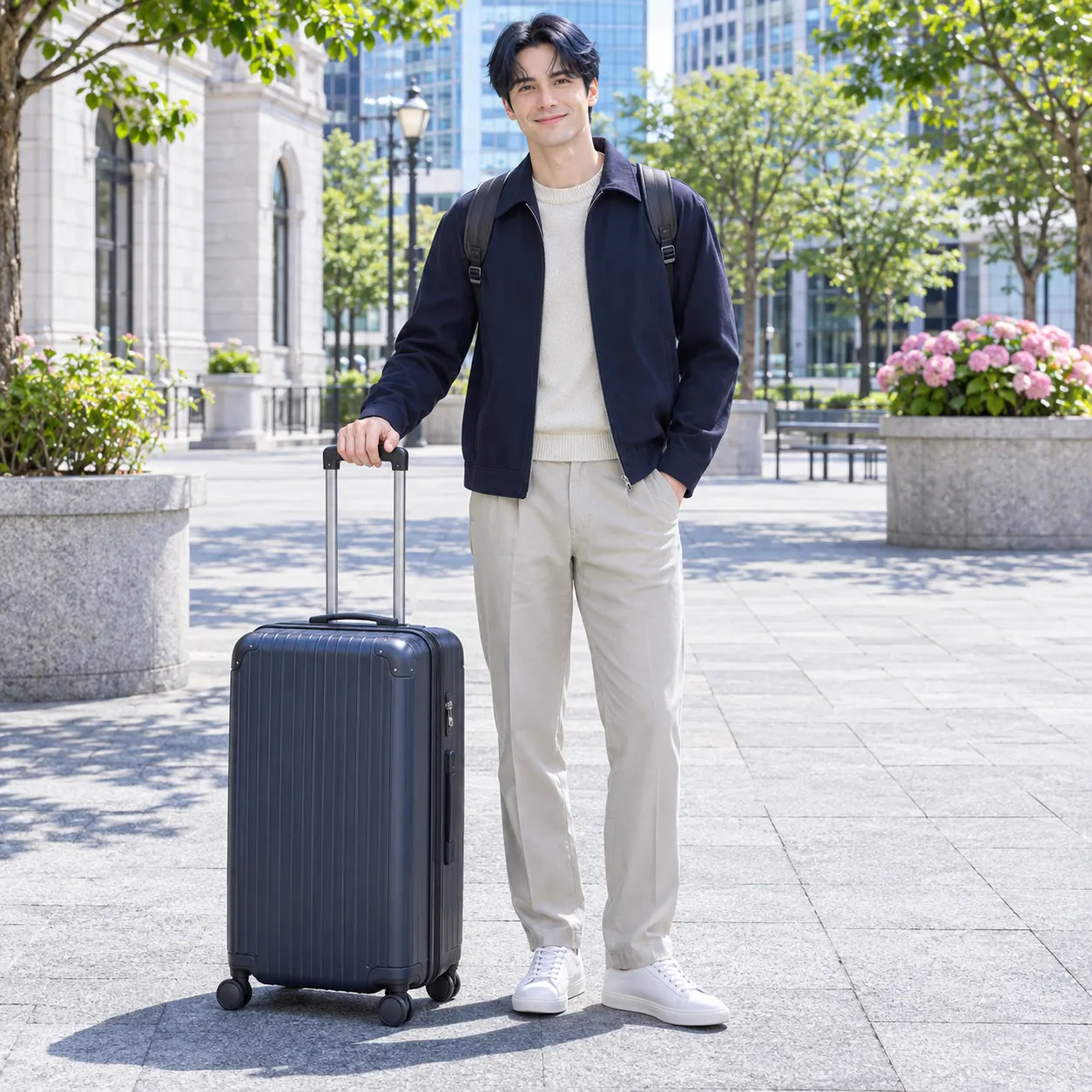
Start with the photo that carries the goodbye welcome feeling you want to share. Upload one clear image of a solo subject or the two people in the moment, with faces visible and no heavy filters. A well-lit image gives the generator a better reference for keeping facial features, hairstyles, skin tones, clothing, body shape, and the number of people consistent. Choose a frame where the important people are not hidden by objects or extreme motion blur.
- 02
Choose a scene and add details
For the goodbye welcome video, choose the closest available visual scene and use the optional prompt to guide the result. You can describe the mood, setting, clothing detail, gesture, or atmosphere you want added. The generator opens with a selected scene, and the Earth zoom-out option turns a plaza wave into a rising city-to-space view. Other available scenes can make the same reference feel gentle, celebratory, dramatic, playful, or cinematic.
- 03
Review and save the finished clip
After the goodbye welcome generation finishes, review the short preview for face consistency, the number of people, the main movement, and the overall mood. The standard output is a vertical 15-second video at 480p. When the result matches your intention, use 29 credits to create the full version at $2.03 and save the completed clip for sharing.


What You Can Make
Keep the people recognizable
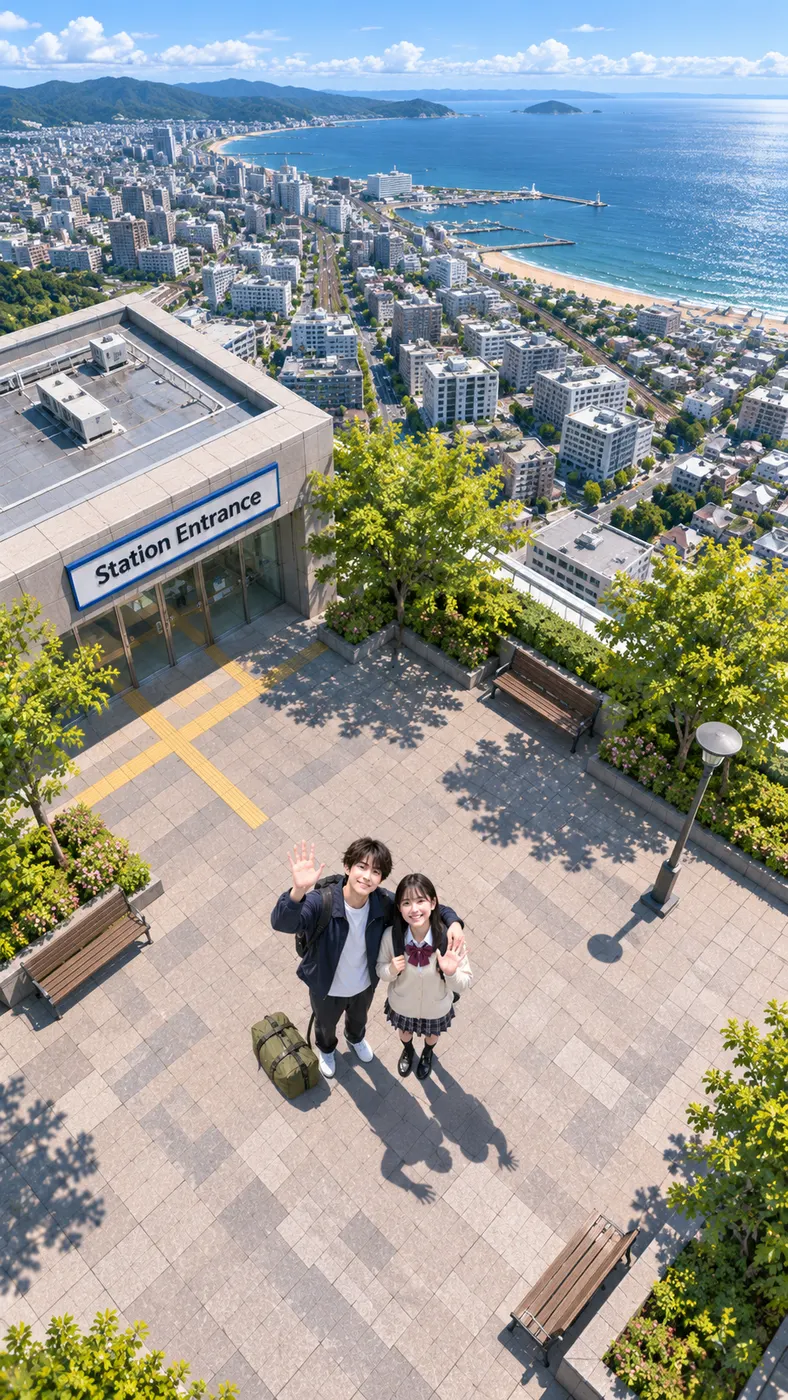
The source image matters most for a goodbye welcome clip because the generator uses it as the visual reference. Faces, hairstyles, skin tones, bodies, clothing, and the number of people are kept consistent with the uploaded photo. That makes the result feel connected to the real moment instead of replacing the people with unrelated characters. Use a solo portrait for an individual message or a photo of two people when both sides of the moment should remain visible.
Add an emotional direction
Use the optional prompt to give your goodbye welcome clip a more personal direction. Add details such as a warm sunset, a quiet farewell, a joyful reunion, a specific jacket, a city setting, or a wave toward the camera. The prompt is optional, so you can leave it empty when the selected scene already gives you the visual idea you want. Keep extra instructions focused on visible details and mood.
Choose a visual journey
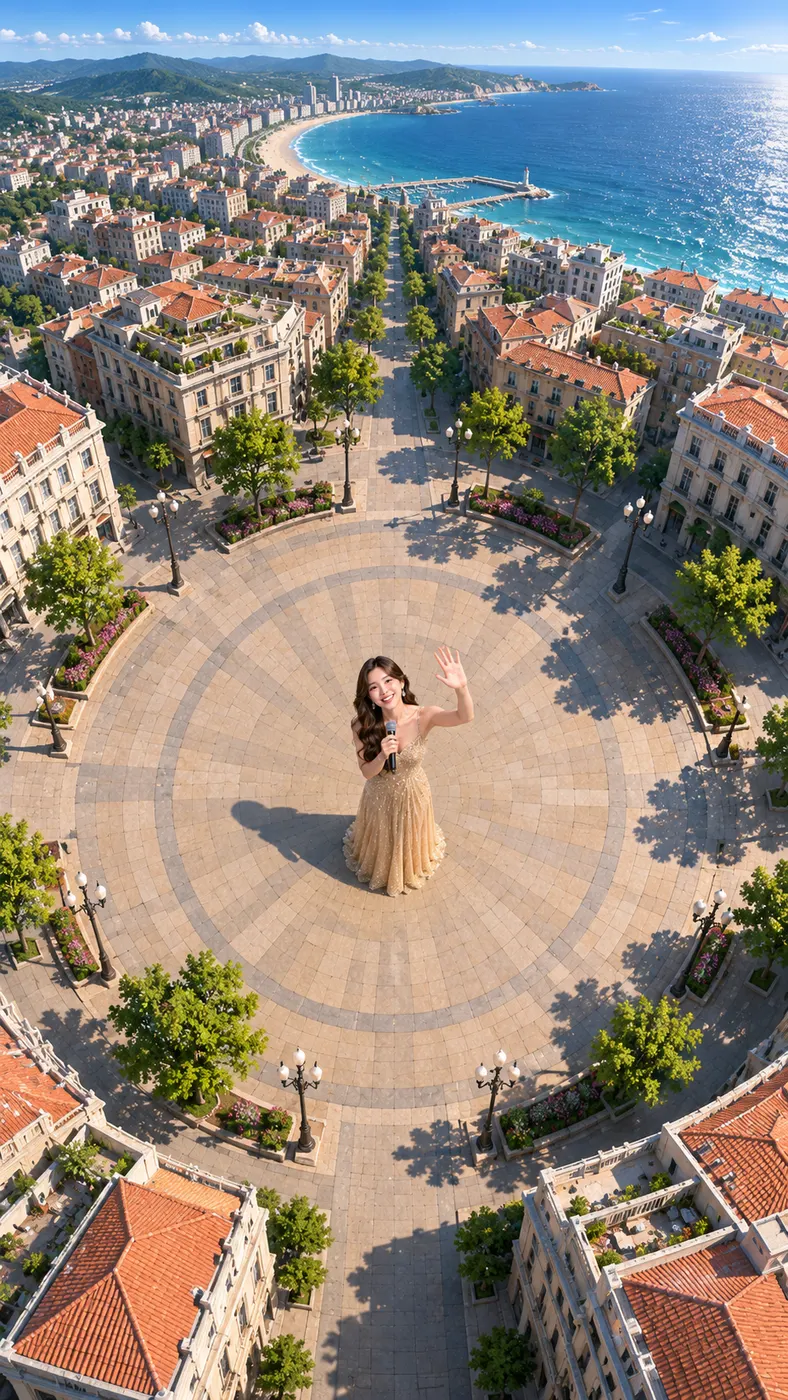
Depending on the selected scene, goodbye welcome can take different forms. Earth zoom out creates a broad, cinematic pullback from a sunny plaza to the whole Earth, while Bring to life keeps the original framing and adds subtle movement such as blinking, breathing, a soft smile, and slight motion in hair or fabric. Other presets can place the same people at fireworks, a concert, a red carpet, or under northern lights.
Prepare a better reference photo
Start with a simple, readable image for a strong goodbye welcome result. Choose a photo with visible faces, enough light, and the people framed clearly. Avoid heavy filters, faces covered by sunglasses or hands, and crowded backgrounds that make the subjects difficult to separate. If the moment includes two people, make sure both are visible in the same frame. The generator can then preserve the important visual relationships more reliably.
Know the output and credit cost
Each goodbye welcome creation is designed as a vertical short for social sharing. The standard output uses 480p resolution and runs for 15 seconds. One completed generation uses 29 credits and is priced at $2.03. Credit packs are available when you want to make several versions with different prompts or scenes, but the page does not promise a free run.
Common Questions About This Clip
What does this AI video effect do?
For a goodbye welcome video, a clear photo of one person or two people becomes a short vertical scene with movement. The people remain recognizable while the selected scene supplies the action, camera movement, atmosphere, and audio direction. You can use the optional prompt to describe a farewell, reunion, wave, setting, or emotional tone, then review the generated result before making the full version.
Can I use it without paying?
This page does not include a free run for goodbye welcome in the supplied configuration. A completed output uses 29 credits and costs $2.03. You can choose a scene, upload the reference photo, and add prompt details before committing to the full creation, so the intended people and visual direction are clear first.
How long does generation take?
There is no fixed processing time promised for a goodbye welcome request. Keep the generation screen open until the result is ready, then check the preview for faces, clothing, people count, movement, and scene continuity. The finished output is a vertical 15-second video at 480p, but processing time can vary with the generation request.
What photo should I upload?
Use one clear photo of a solo subject or two people with visible faces and no heavy filters. A well-lit image with readable hairstyles, skin tones, clothing, and body positions gives the generator a stronger reference for the goodbye welcome scene. Avoid severe blur, hidden faces, or a crowded frame when the identity and relationship between the people are important to the final clip.
Can I use someone else’s photo, and is this official?
You should use someone else’s photo only when you have permission to create and share the result. This is a Rap Blaze creation for the goodbye welcome idea, made from the uploaded reference image and selected scene; it is not presented as an official recording, endorsement, or original event footage. Treat the generated clip as a creative interpretation and respect the people shown in the photo.
Make Your Own Clip
Bring your goodbye welcome idea to life with one clear photo, a selected scene, and an optional prompt for the details that matter. Upload the people you want to show, review the generated direction, and create a polished vertical video ready to share.