
Bicep Heart AI
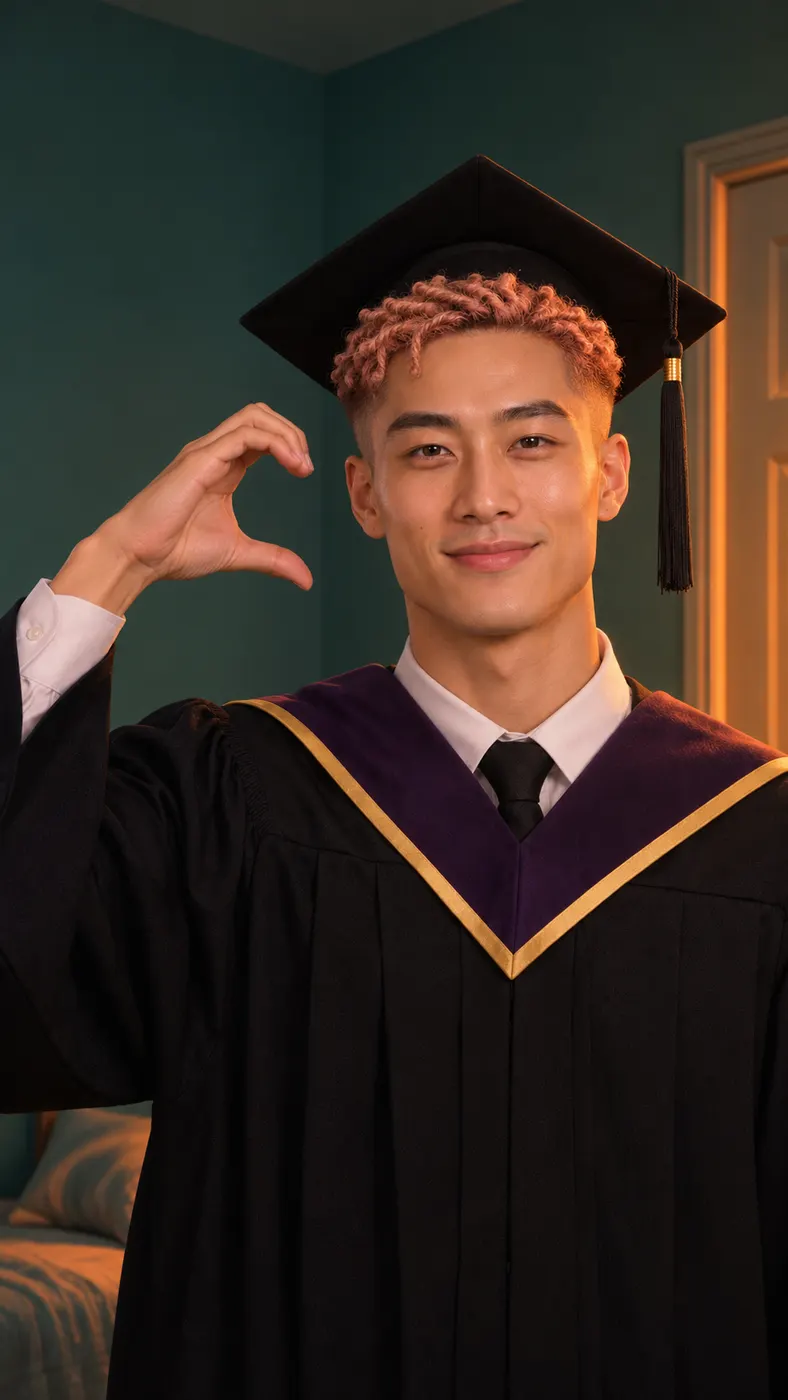
Bicep Heart AI puts you into the recognizable camera-facing scene: smile, flex one arm, and curl your other hand against the bicep to make a heart. Upload one clear photo, and make the arm-heart clip from one photo without performing the pose yourself.
One clear photo: a solo shot or the two of you. Faces visible, no heavy filters
Tip: drag a photo onto its box, or click the box to pick one.
You take the place of the person flexing a heart with their arm.
Bicep Heart · Smile at the camera, flex one arm and curl your other hand against the bicep to make a heart.
This video: 45 credits · Credits come back if it fails
AI video effect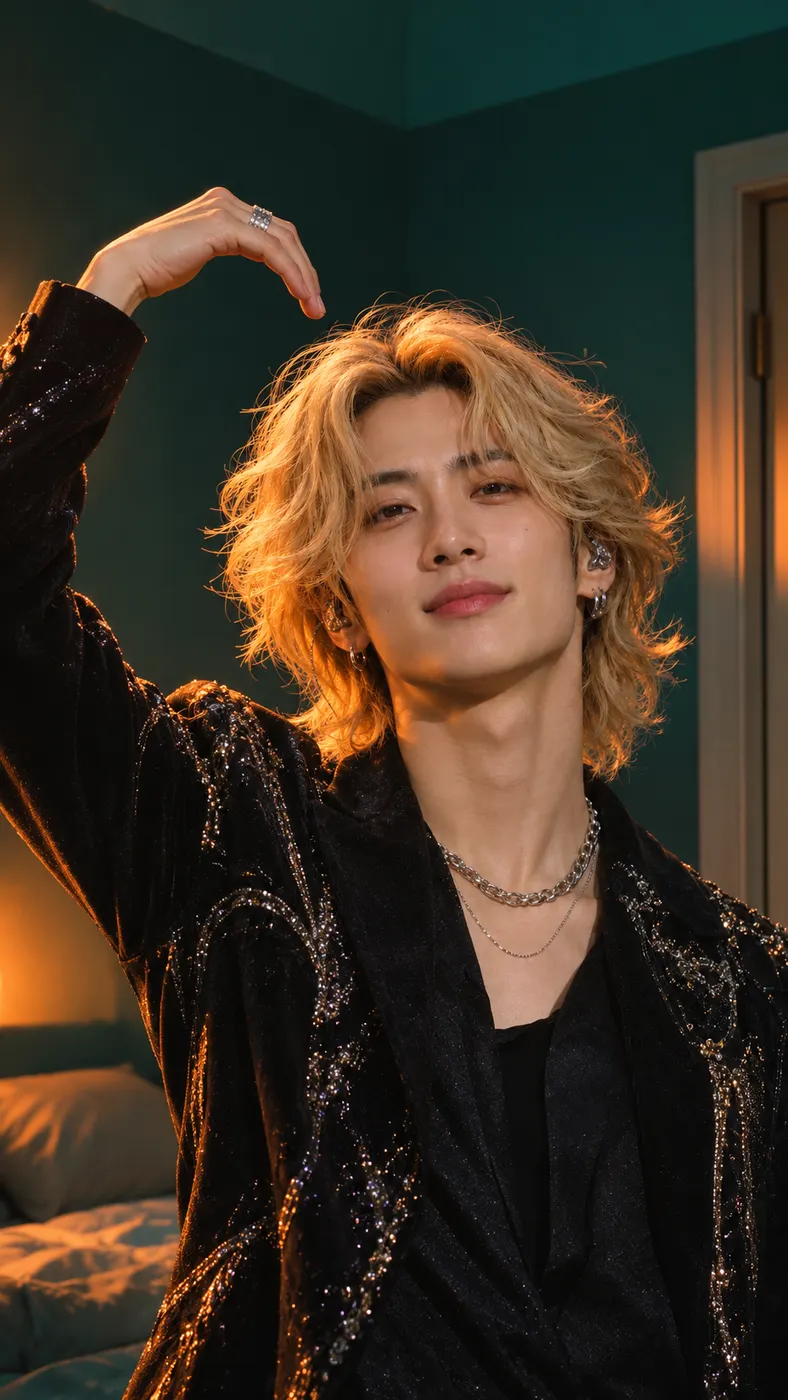
Bicep Heart AI Examples
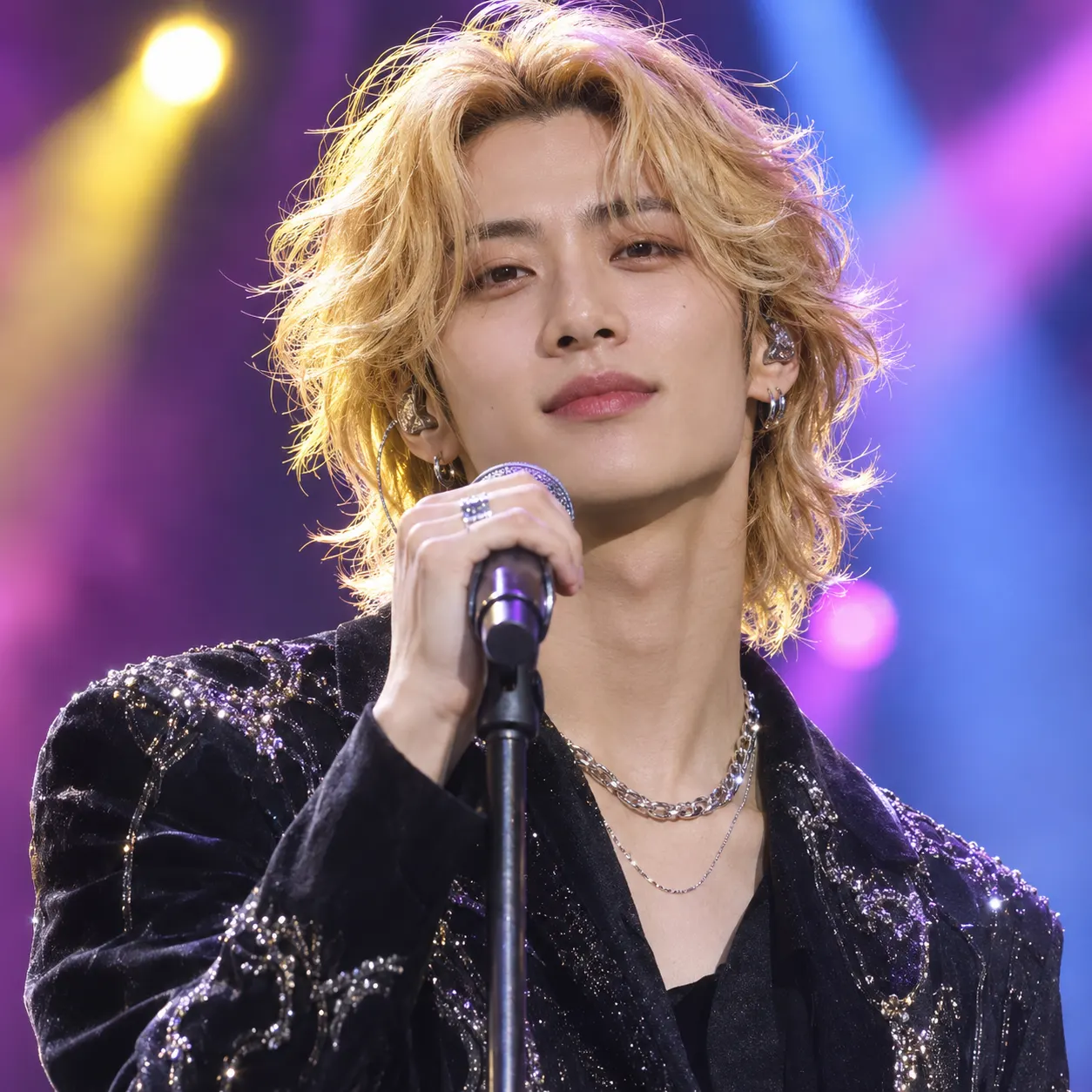
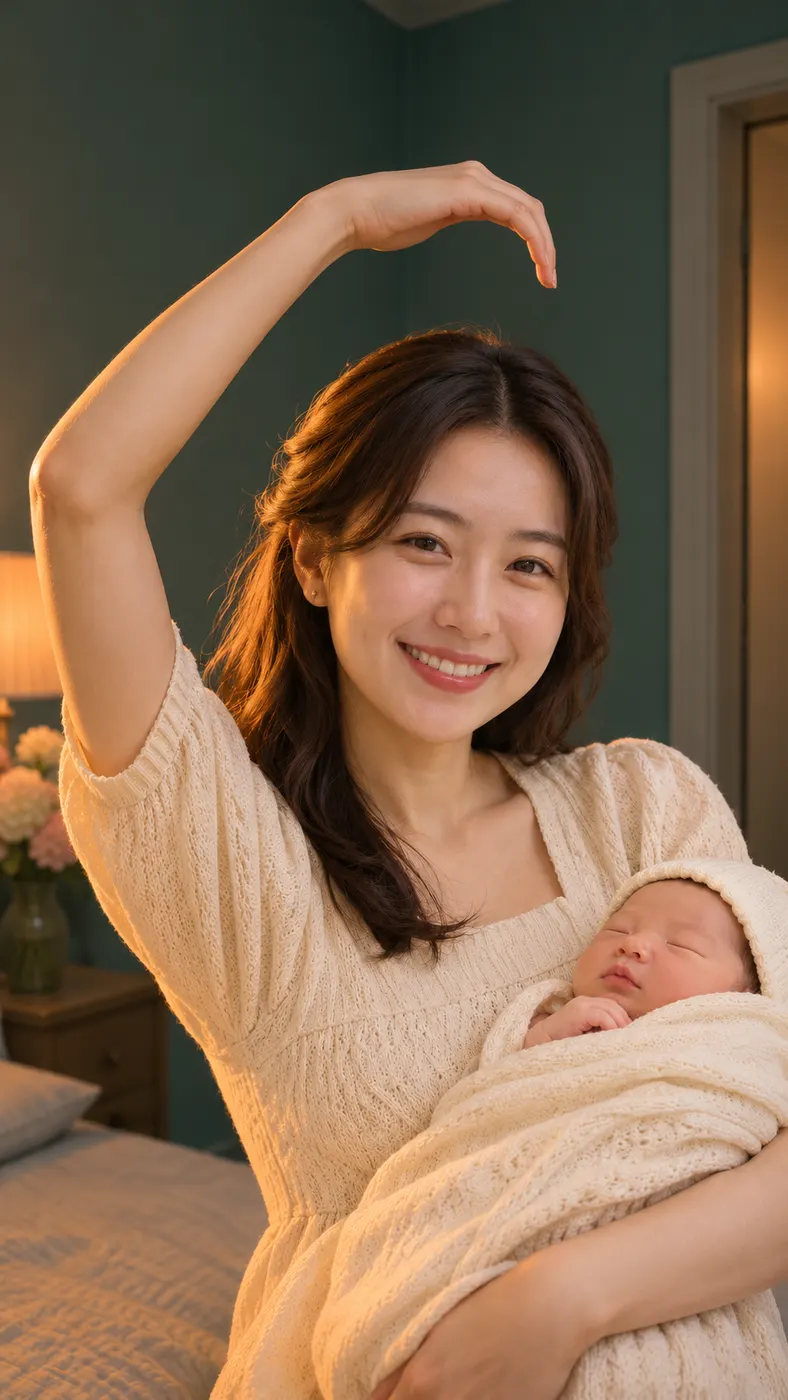
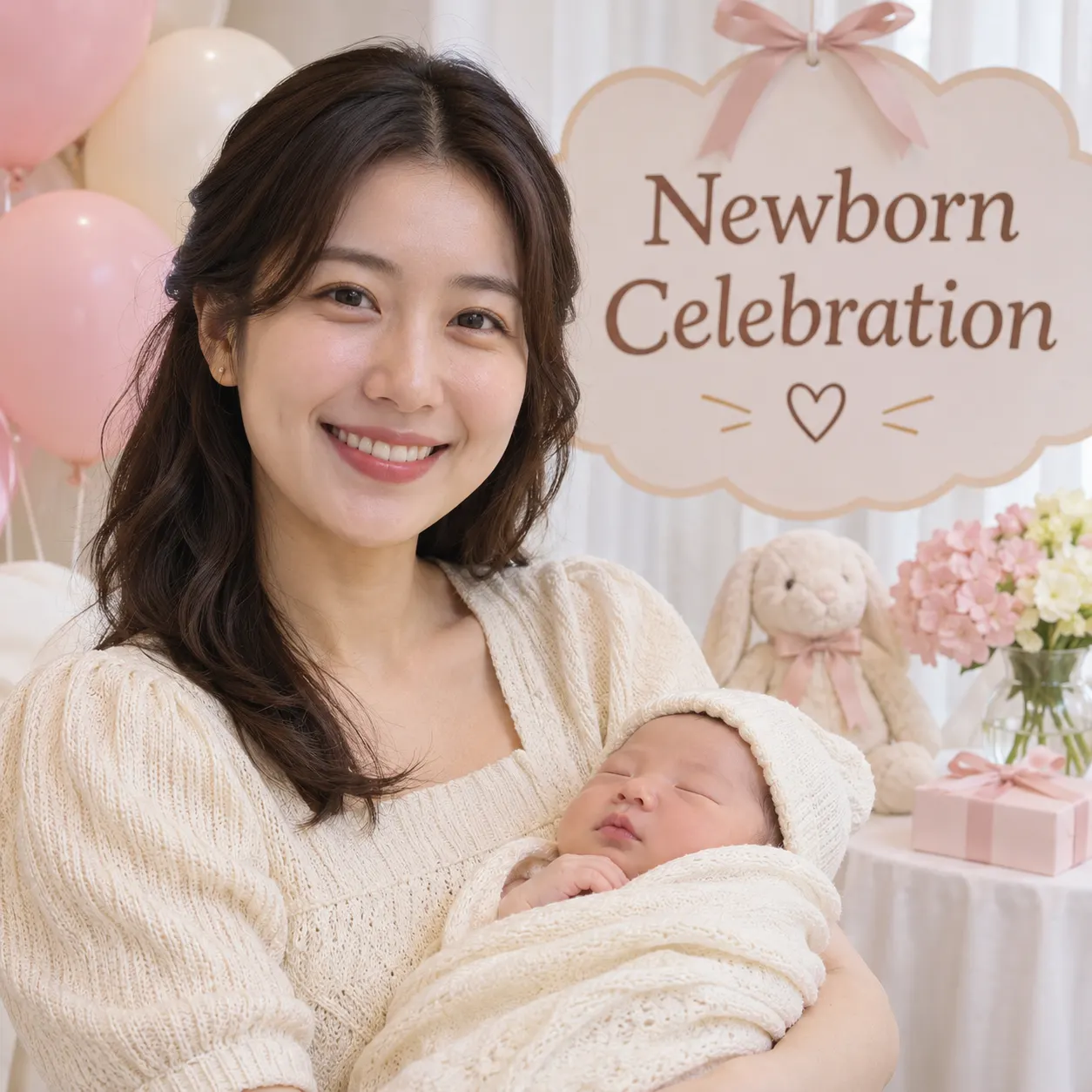
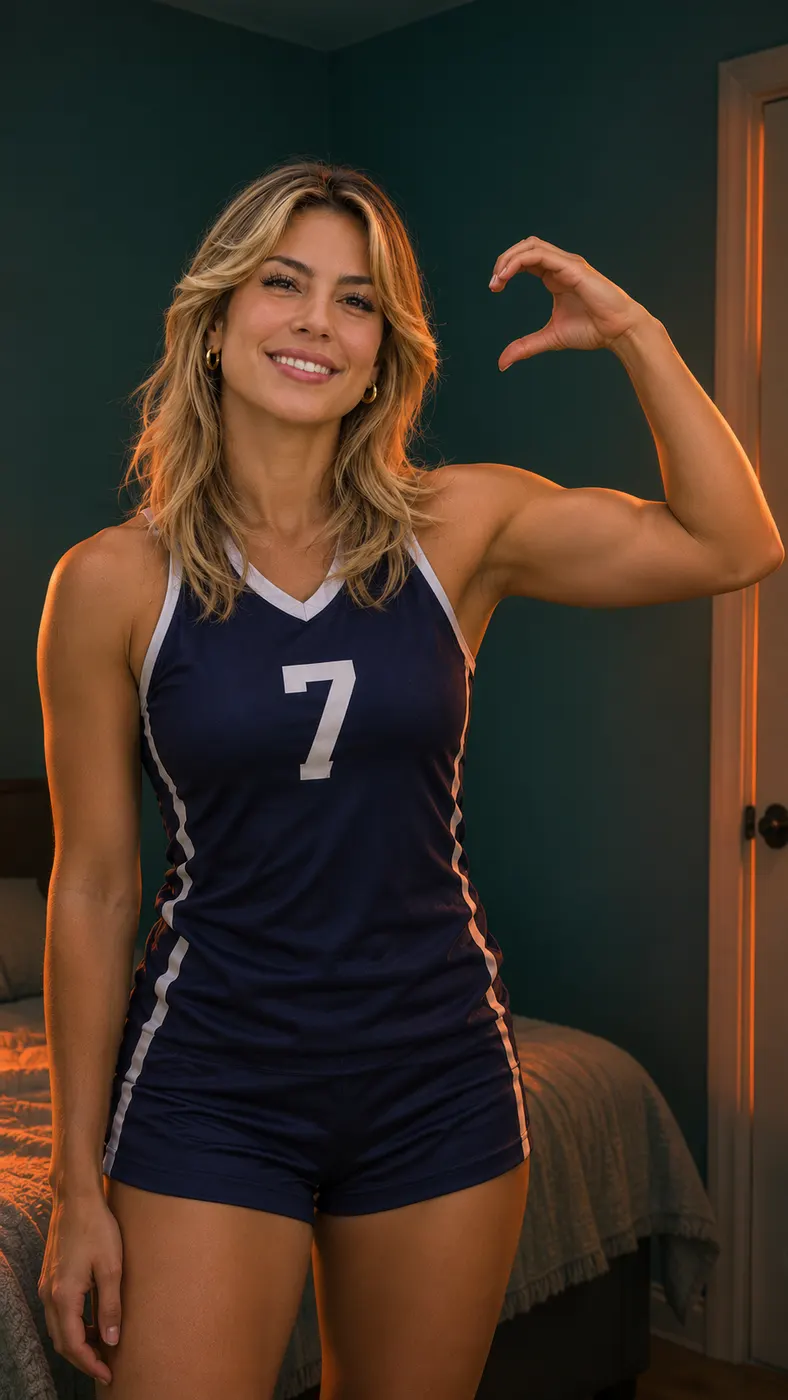
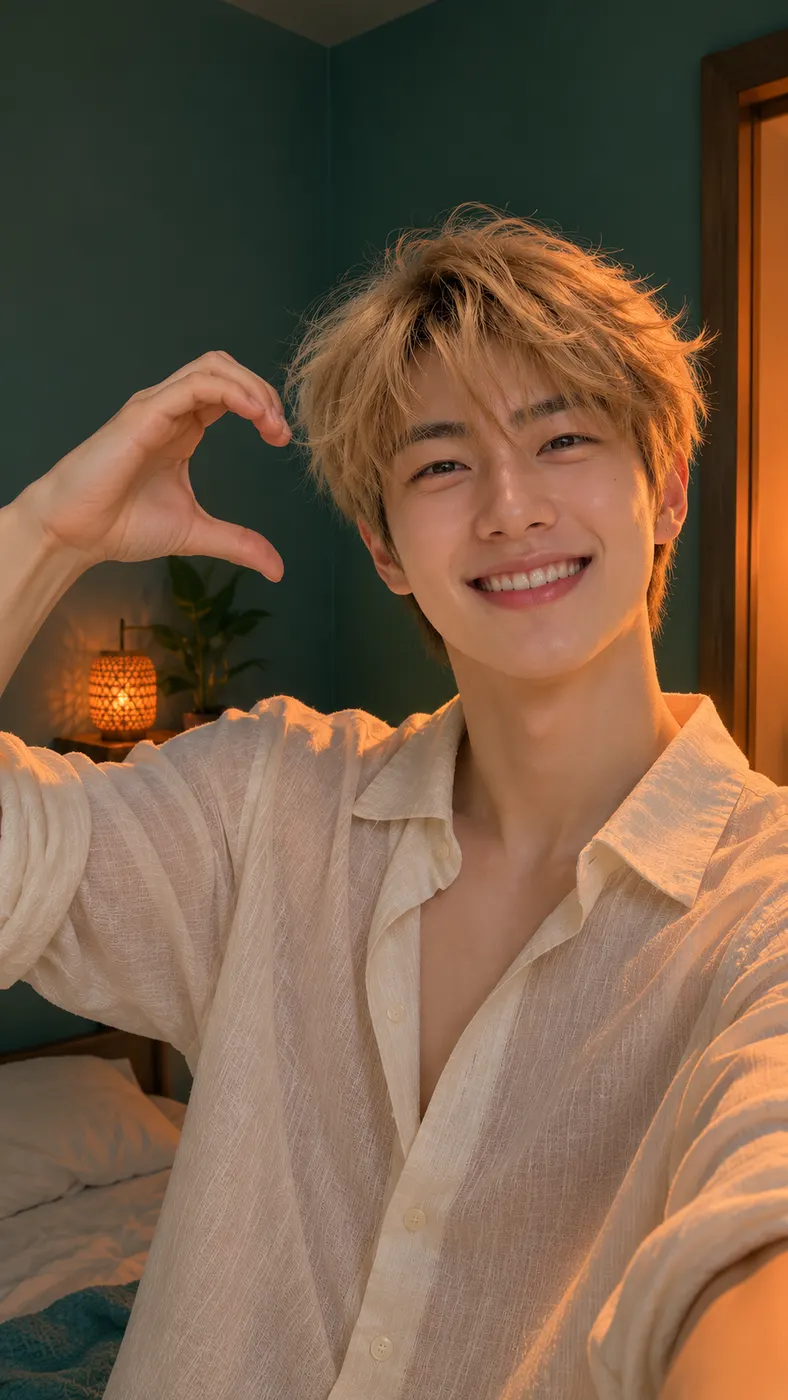
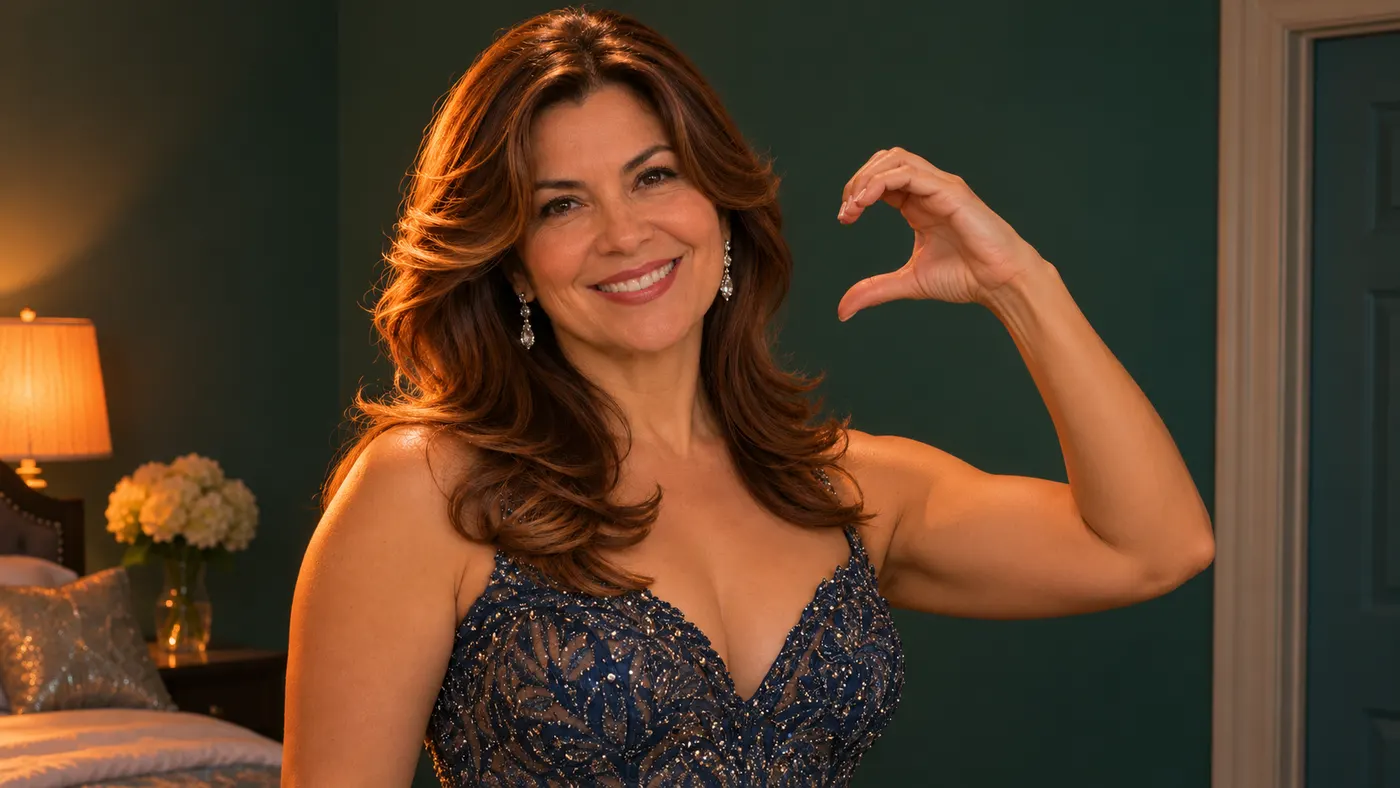
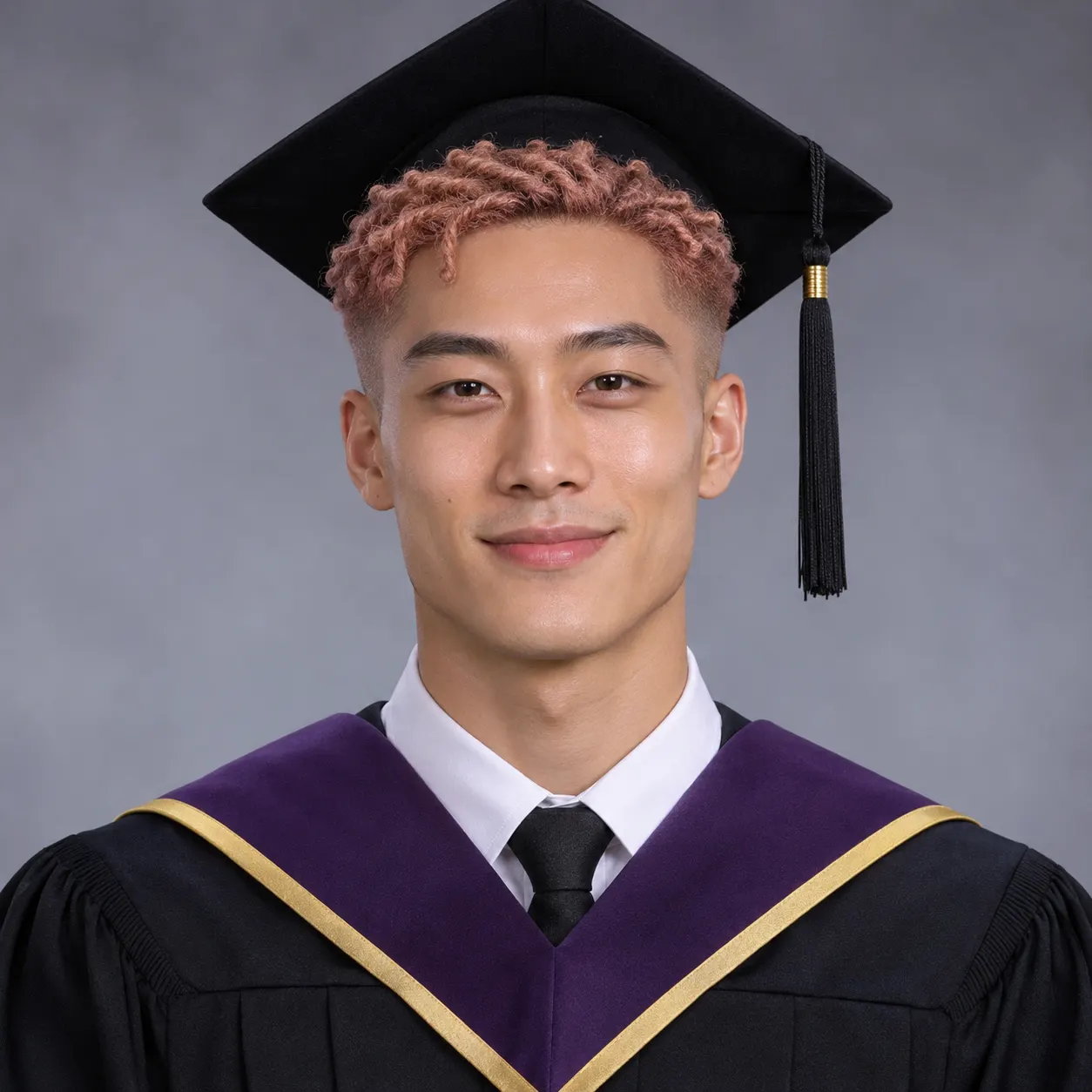
These examples show how the same arm-heart scene can look with different people while the recognizable gesture stays easy to share. For stronger results, use the one-photo guide, review how long AI video generation takes, and check the current pricing before you submit.









How Bicep Heart AI Works
- 01
Upload a clear photo
Choose one clear photo with a visible face and a solo subject, or upload a photo of two people when both faces are easy to see. Avoid heavy filters and images where the face is hidden, cropped, or blurred. A straightforward portrait gives the scene enough information to preserve the person’s face, hairstyle, skin tone, body, and overall appearance while placing the subject into the reference clip.
- 02
Generate and review the result
On the Bicep Heart AI page, keep the Bicep Heart scene selected, add your photo, and submit the generation. The scene is designed around a camera-facing smile, a flexed arm, and the opposite hand curled into a heart against the bicep. If you need to clarify clothing or another visible detail, use the optional details field; otherwise, leaving it empty keeps the request simple. Review the generated motion before deciding whether it is ready to share.
- 03
Download the finished clip
Bicep Heart AI uses the selected scene and your uploaded image to create the final short video. The service displays the applicable cost before completion, and you can use 29 credits or the listed $2.03 charge shown for this type of generation. When the result is ready, download the complete clip and save it for social posts, messages, or a quick trend response.

What You Can Do With This Scene
Turn a still portrait into a recognizable gesture
Bicep Heart AI gives a static portrait a clear action: the subject smiles toward the camera, flexes one arm, and uses the other hand to form a heart against the bicep. That makes the result more expressive than a still image while keeping the idea simple enough to understand at a glance.
Keep the focus on your own appearance
Start with a photo where the face is visible and not covered by a heavy filter. The generator is intended to keep the same face, hairstyle, skin tone, body, and number of people from the uploaded image rather than replacing the subject with an unrelated person. A clean source image is especially useful when you want the finished clip to still look like you.
Share a quick, playful social clip
The arm-heart pose reads immediately in a vertical short video, so you can use the finished result in a story, message, post, or trend reply. It works when you want a lighthearted flex, a friendly heart gesture, or a recognizable reaction without arranging a room, camera, lighting setup, and performance yourself.
See the cost before you commit
The displayed charge for this scene is tied to the site’s video-effect pricing, shown as $2.03 or 29 credits where applicable. Check the amount presented in the generation panel before completing the request. The page does not promise a free run, so plan to use the visible price or credit balance for the finished result.
Use a solo photo or a photo of two people
The upload accepts a solo image or a picture of two people when their faces are visible. The scene is easiest to control when the intended subject is clear and the image is not crowded. If you are using another person’s photo, get their permission first and make sure the image is appropriate to transform and share.
Bicep Heart Questions Answered
What is Bicep Heart AI?
Bicep Heart AI is a photo-to-video scene that places the person from an uploaded photo into a recognizable arm-heart moment. The subject faces the camera, smiles, flexes one arm, and curls the other hand against the bicep to make a heart. It is based on a reference clip set in a dim teal-green room with warm orange side light.
Is Bicep Heart AI free?
Bicep Heart AI does not promise a free generation on this page. The generation panel shows the applicable charge or credit requirement before you complete the request, including the site value $2.03 or 29 credits when displayed for this type of video. Check the panel for the current amount rather than assuming that a preview or full result is free.
How long does Bicep Heart AI take?
Bicep Heart AI creates a short video from one uploaded image, but the exact wait can vary with the generation queue and current service load. Submit a clear photo, keep optional instructions concise, and allow a few minutes rather than expecting an instant result. The practical timing guidance in the generation flow is the best estimate for your request.
What kind of photo should I upload for the arm-heart scene?
Use one clear photo with the intended face visible, natural lighting, and no heavy filter. A solo portrait is the simplest option, but a photo of two people can work when both faces are visible and the intended subject is easy to identify. Avoid extreme crops, face coverings, strong blur, or a crowded image where the person’s body and pose are difficult to read.
Can I use someone else’s photo?
You can use a photo of another person only when you have their permission and the intended use is respectful and lawful. The upload can contain a solo subject or two people with visible faces, but permission should cover both the transformation and how you plan to share the finished clip. Do not use a private or sensitive image without clear consent.
Is this an official clip from the person in the reference video?
No. The scene uses a reference video to guide the movement, then generates a new result from the photo you provide. It is not an official endorsement, original performance, or claim that the person in your image appeared in the reference. The generated clip should be treated as an AI-made transformation and shared with appropriate context.
Make Your Arm-Heart Clip
Return to the generator panel, upload a clear photo with a visible face, and select the Bicep Heart scene. Check the displayed cost, generate the result, and save the finished short video when the pose looks right.