
Birthday Car AI
With birthday car ai, you use one clear photo to step into the driver’s place in a vertical birthday scene. A dark-red SUV drifts across a flat desert lot and stops beside a birthday cake with lit candles. You lean out of the window and blow out all the candles while the cake holder’s hands stay in the frame, creating a funny surprise moment made for sharing.
One clear photo: a solo shot or the two of you. Faces visible, no heavy filters
Tip: drag a photo onto its box, or click the box to pick one.
You take the place of the driver who leans out of the car window.
Birthday Car · A car drifts in behind your birthday cake and you lean out of the window to blow out every candle.
This video: 45 credits · Credits come back if it fails
AI video effect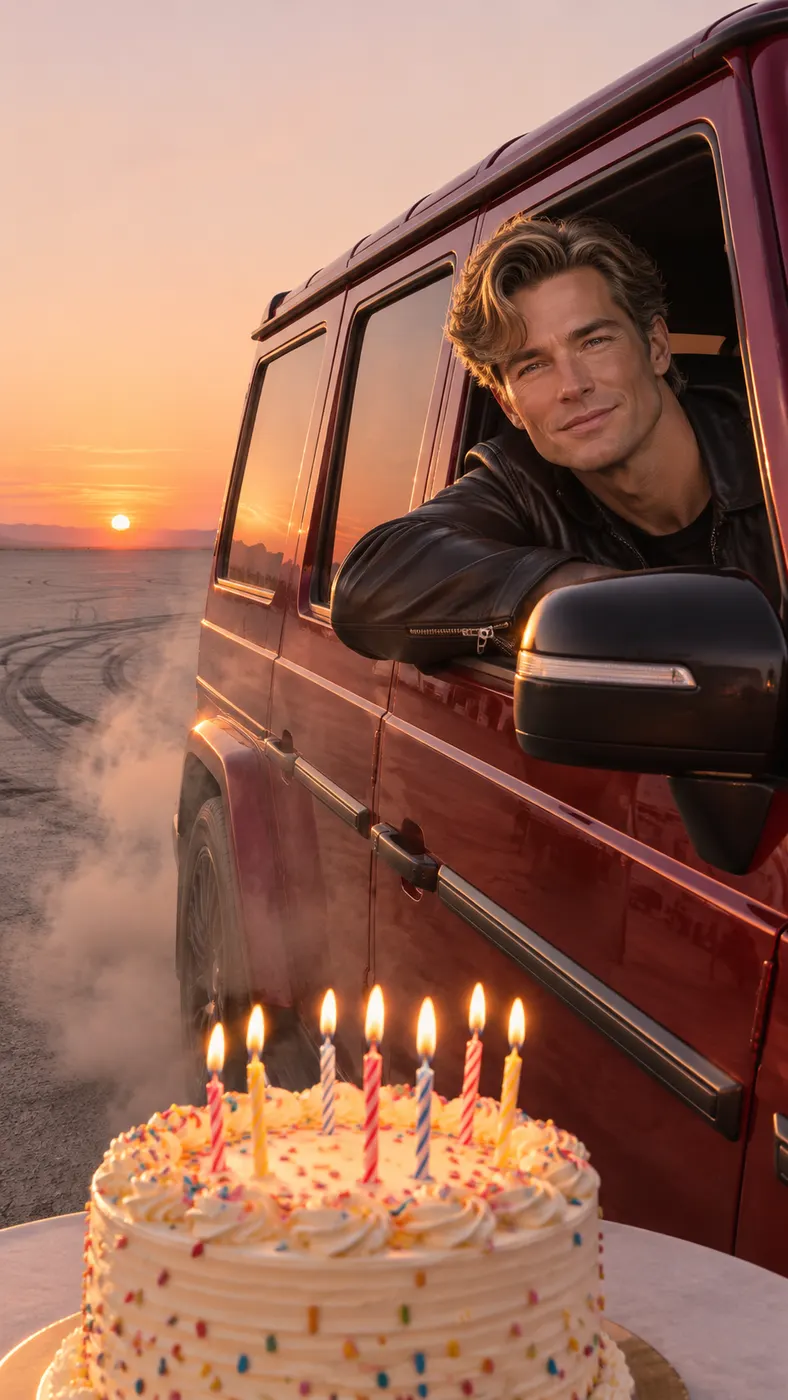
Birthday Car AI Examples You Can Make
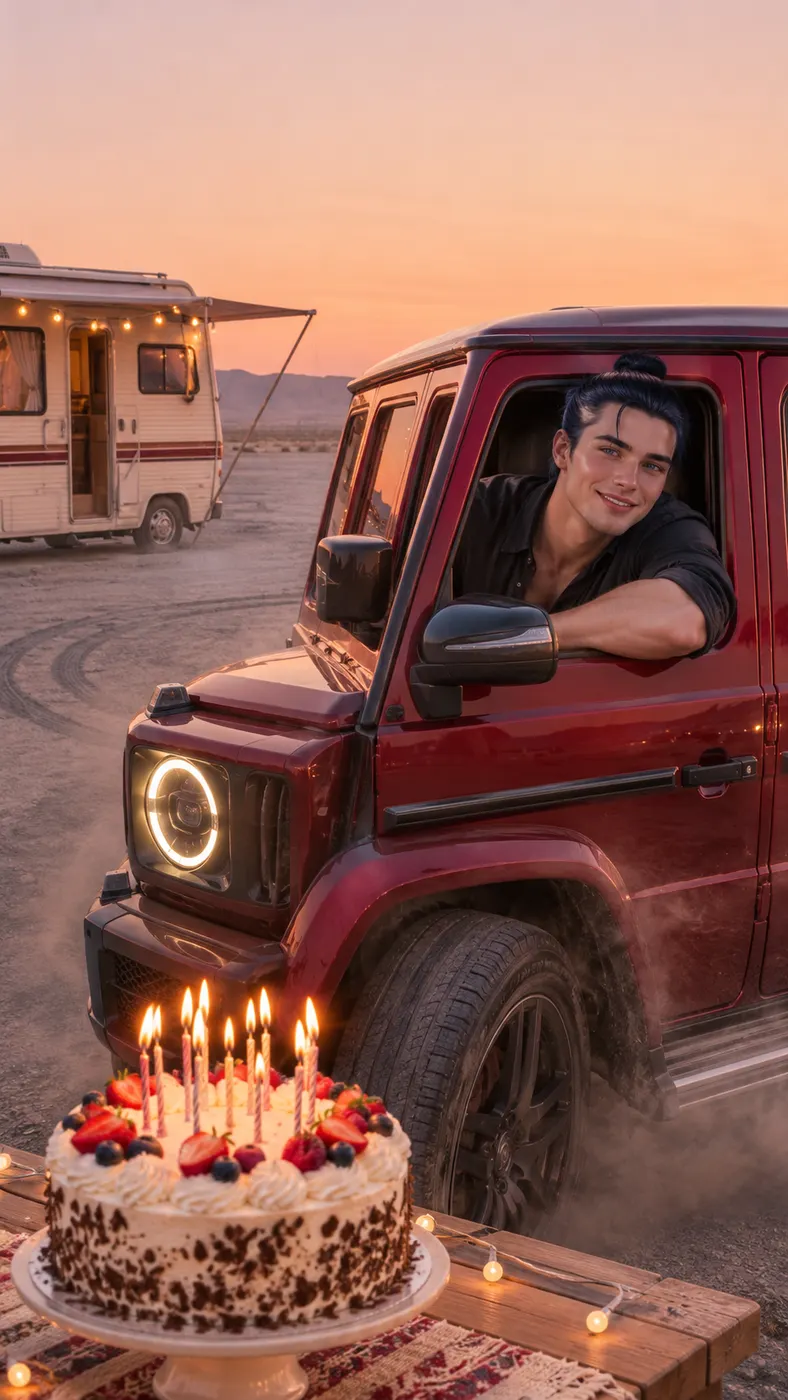
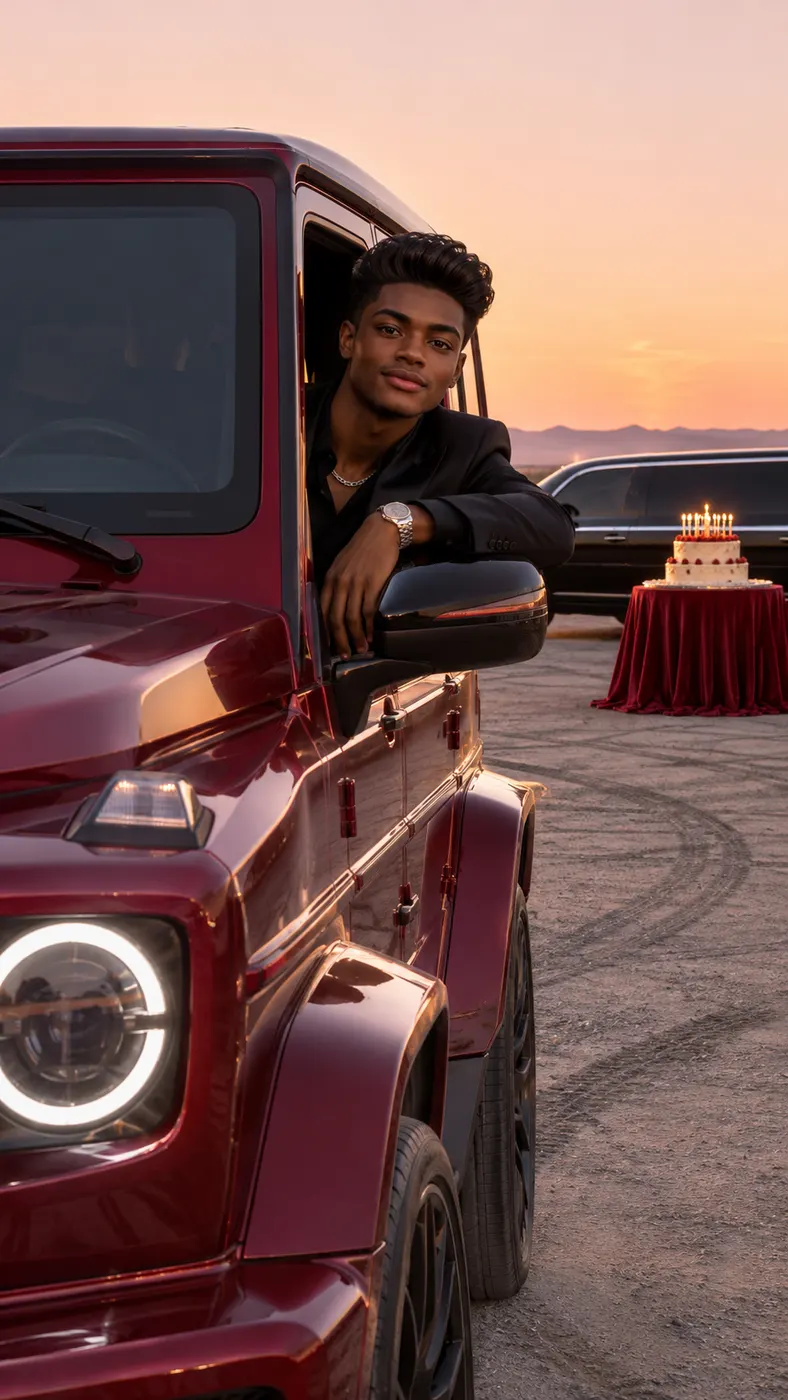
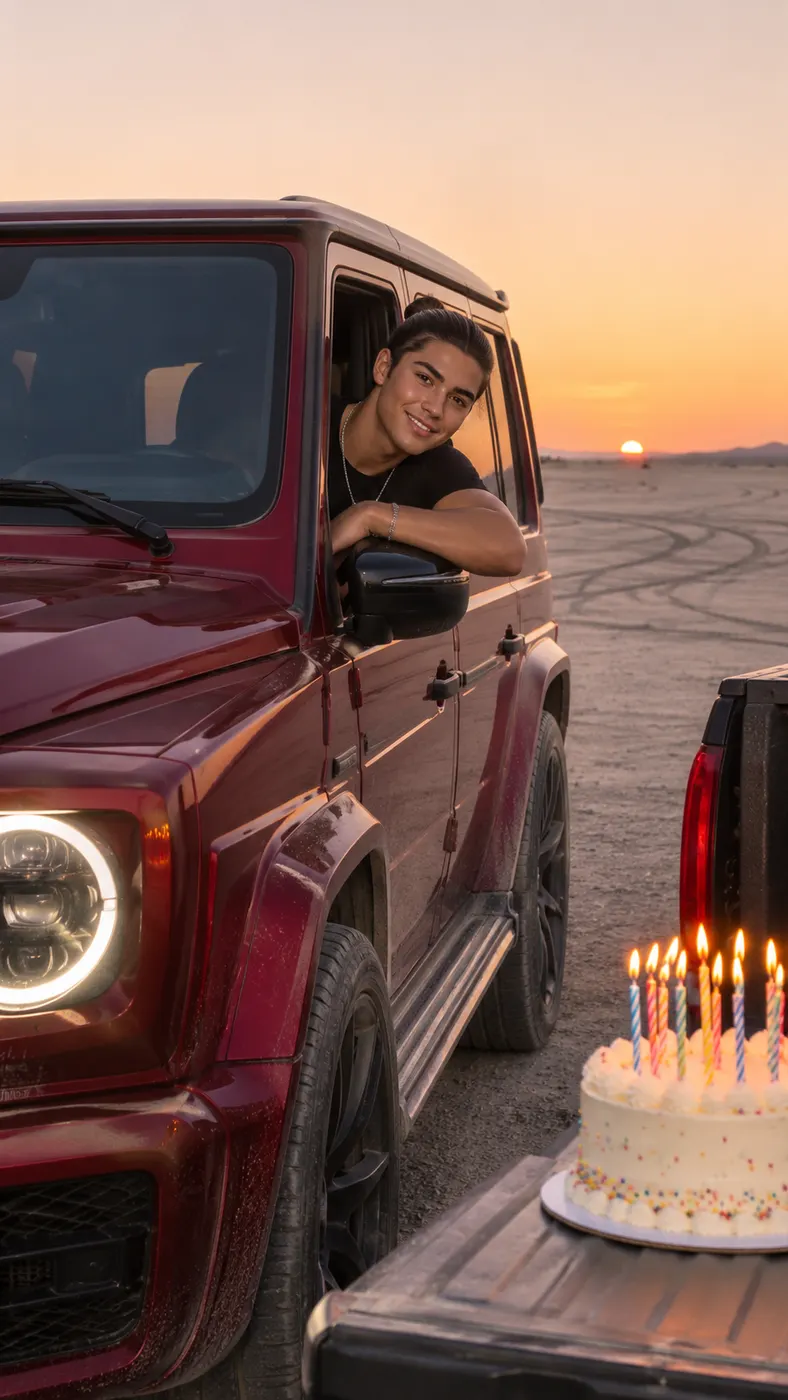
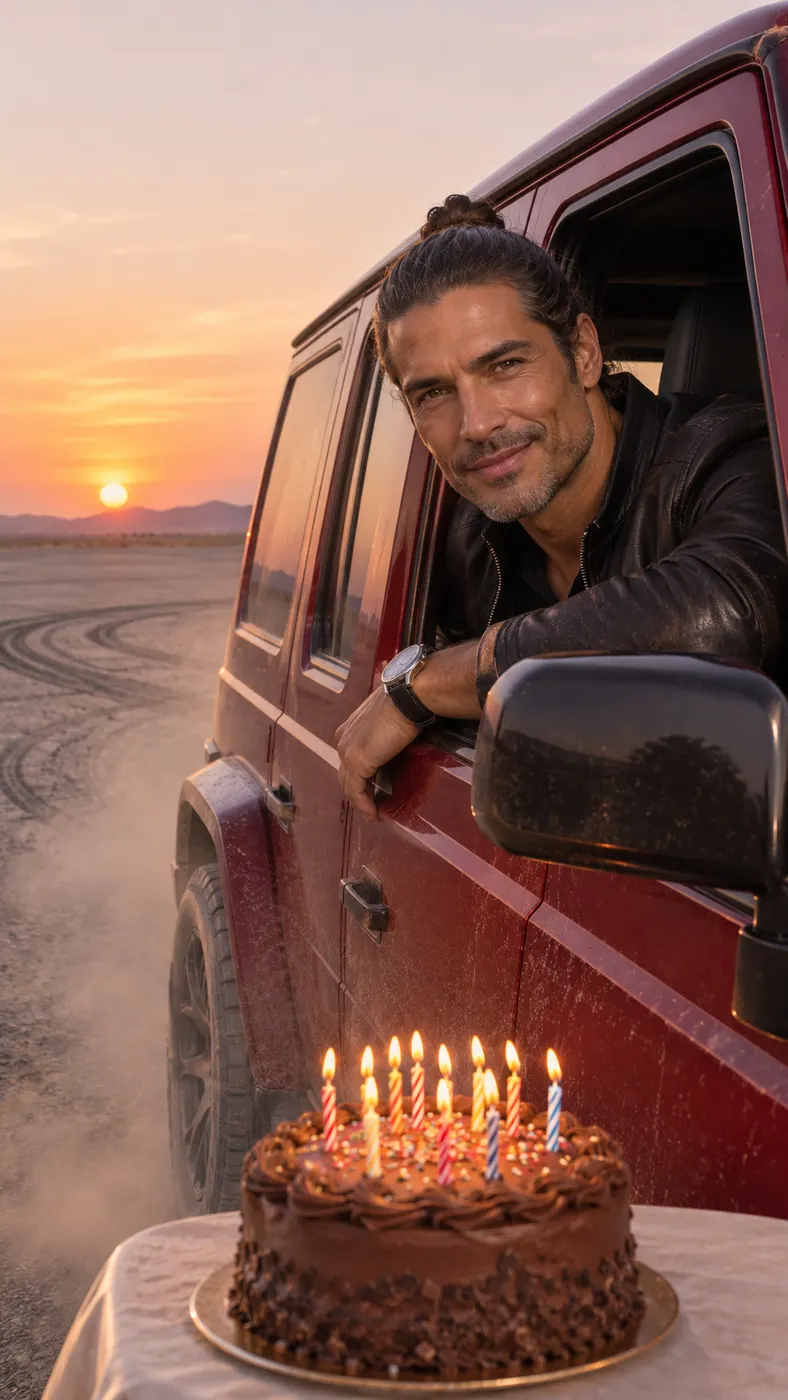
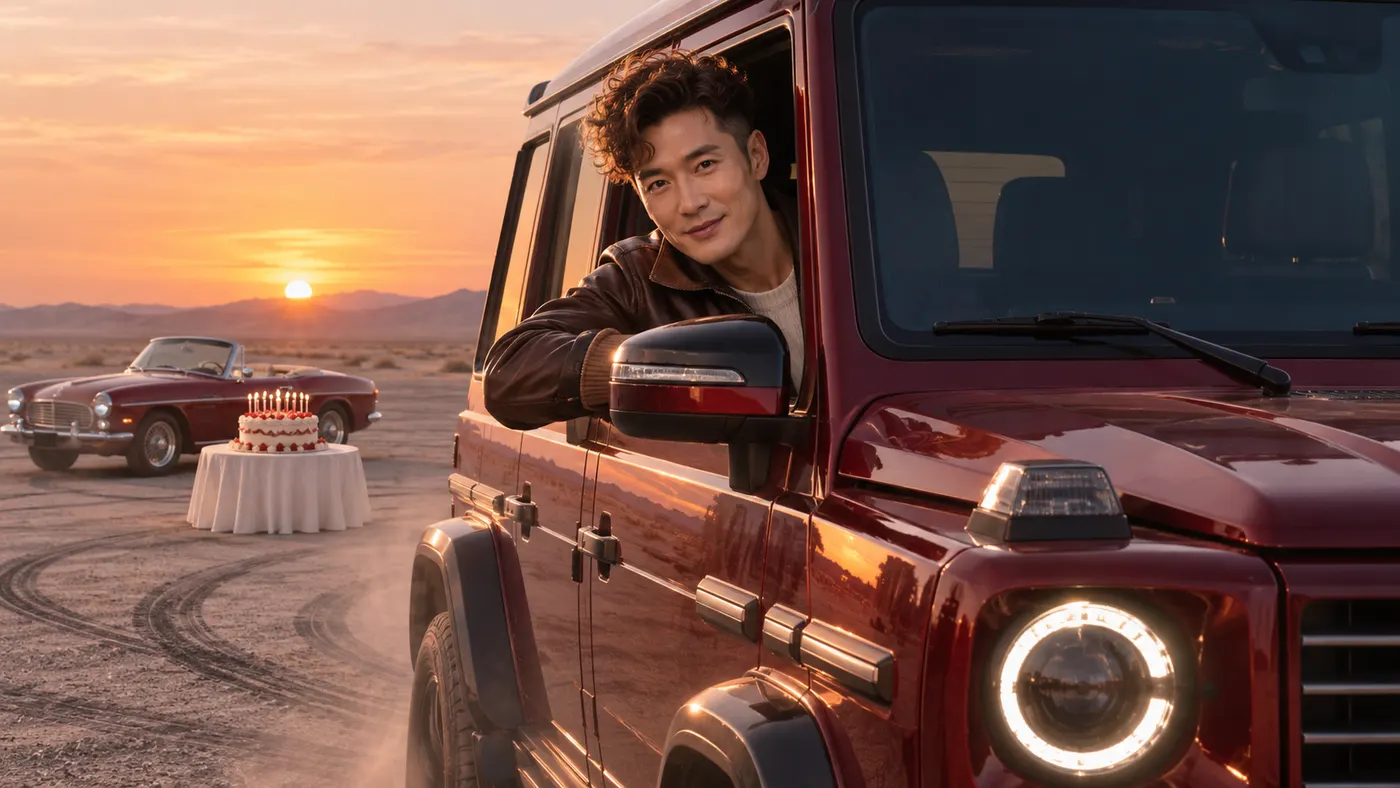
Birthday car ai examples show the same memorable reveal from different source photos: a person appears in the driver’s place, the SUV drifts into view, and the birthday cake stays at the front of the shot. Before creating your own, review this one-photo preparation guide, compare another reference-clip scene, and check the available credit options. Each example keeps the focus on the arrival, the cake, and the candle-blowing reaction.
How Birthday Car AI Works From One Photo
- 01
Upload a clear photo
For birthday car ai, begin with one clear photo of the person who should take the driver’s place. A solo image works, and the input can also show two people when both faces are visible. Choose a front-facing or easy-to-read image with faces unobstructed, natural detail, and no heavy filters. The uploaded person is used for the driver who leans out of the window. Keep the source image simple so the generator has a clear face, hairstyle, skin tone, and body shape to follow.
- 02
Generate and review the scene
Select the Birthday Car scene and start the run after checking the uploaded image. The reference action places a dark-red, boxy SUV in a flat desert lot at sunset. It drifts in from far away, stops near the camera, and keeps the birthday cake and its lit candles at the bottom of the frame. The result is a vertical video using the available 480p setting and a 15-second output. Plan for a few minutes of processing rather than expecting the result instantly, then review the candle-blowing action before sharing it.
- 03
Download the full video
Making the full scene uses 29 credits at $2.03; when the result is ready to your liking, download it. The completed video follows the reference clip’s action: the SUV arrives, the driver leans out, and the candles are blown out in one short birthday reveal. Save the finished vertical clip and send it as a surprise message or post it where the recipient will see the car arrive before the birthday moment.
What You Can Make With This Scene
Turn one birthday photo into a surprise arrival
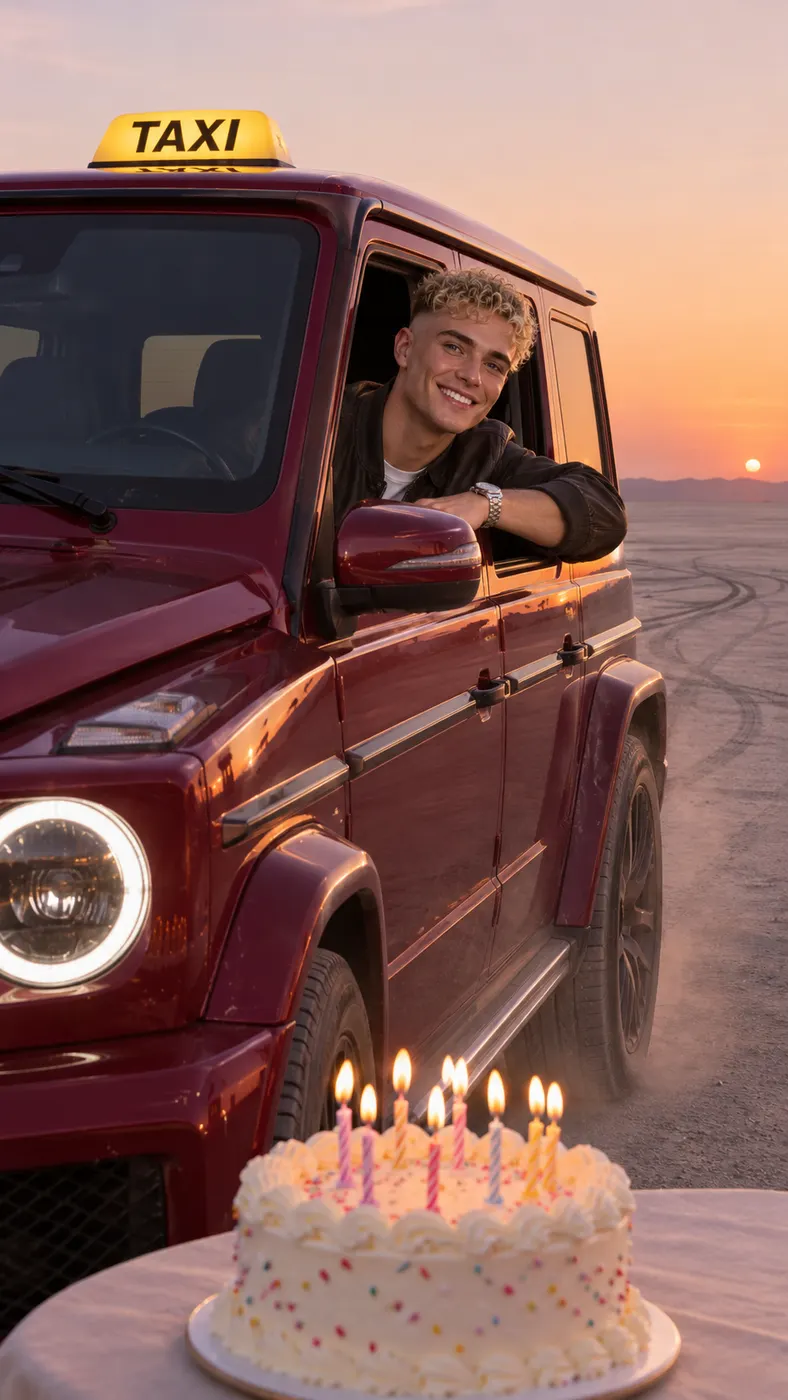
A single birthday photo gets a clear beginning, middle, and payoff with birthday car ai. The vehicle first appears in the distance, then drifts across the lot and stops beside the cake. Instead of a static greeting, the person from the uploaded image becomes part of an unexpected entrance. The sequence works especially well when the recipient sees the cake first and notices the driver arriving behind it a moment later.
Keep the cake and candle moment central
The reference scene keeps the cake holder’s hands and the cake with lit candles at the bottom of the frame. That detail makes the action readable: the SUV arrives behind the cake, the driver leans through the window, and the candle moment remains the reason for the reveal. You do not need to describe a new cake arrangement in the optional prompt because the Birthday Car scene already establishes this visual setup.
Create a vertical clip for quick sharing
The finished result is a vertical short video, and birthday car ai arranges the main action for a phone screen. The drifting SUV, the window reveal, and the candles all happen in the same focused composition rather than requiring a long story. You can use the finished clip as a birthday message, a social post, or a playful surprise for someone who would enjoy seeing a familiar face appear in an exaggerated cinematic entrance.
Choose a photo that gives the generator useful detail
A clear source photo matters because the uploaded person replaces the driver in the reference clip. Use an image where the face is visible, the subject is not hidden by a heavy filter, and the number of people is easy to understand. A solo shot is straightforward; a photo of two people can also work when both faces are visible. Avoid a dark, blurry, or tightly obstructed image that makes the driver’s identity difficult to follow.
Use the scene without adding complicated instructions
The prepared scene already gives birthday car ai the main action, location, vehicle movement, cake, and candle reveal. The optional text field is available when you want to add a small detail, such as clothing or a simple personal touch, but the core scene does not depend on a long description. Start with the prepared Birthday Car setup, then add only details that support the birthday surprise instead of changing the central car-and-cake action.
Birthday Car Questions Answered
What happens in the Birthday Car scene?
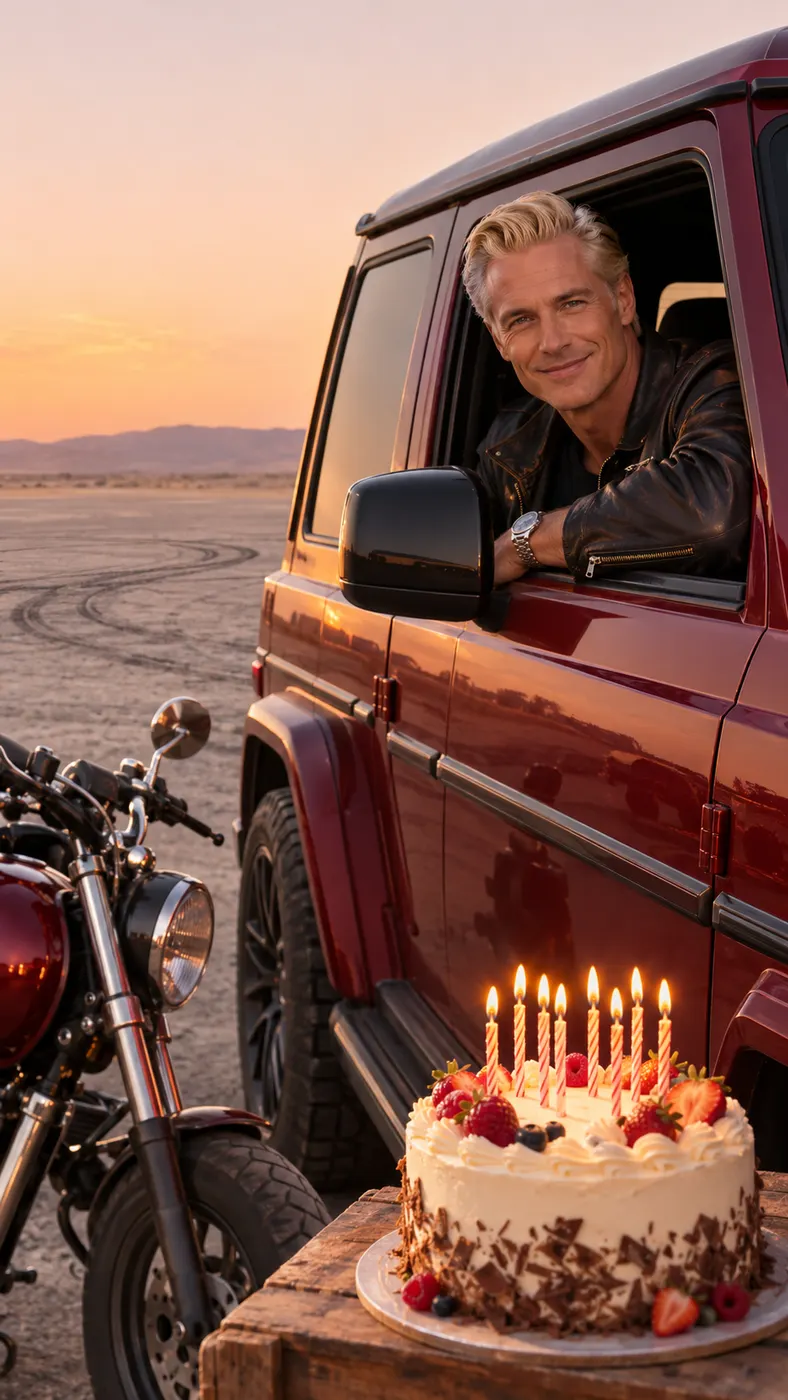
Birthday car ai places the person from one uploaded photo in the driver’s position of a reference clip. A dark-red boxy SUV drifts across a flat desert lot at sunset and stops in front of the camera. The driver leans out of the window toward a birthday cake held at the bottom of the frame, then blows out the lit candles. The result is a short, vertical birthday surprise built around one clear arrival and reveal.
Is Birthday Car AI free to use?
Birthday car ai is a paid generation rather than a free run. A completed result uses 29 credits and is priced at $2.03. The available credit amount and price are shown by the site at generation time, so check the generator panel before starting. If you are preparing a gift, confirm that the uploaded photo is suitable first so your paid run is focused on the person and scene you want.
How long does Birthday Car AI take to generate?
Birthday car ai usually needs a few minutes of processing, so it is best to start before you need to send the birthday message. The result is a vertical video using the available 480p setting and a 15-second duration. Processing time can vary with the service queue and the generation run. Once it finishes, review the driver replacement, the SUV arrival, and the candle action before saving the completed clip.
What kind of photo should I upload?
Upload one clear photo with visible faces and no heavy filters. A solo shot is suitable, and the input can also show two people when both faces are easy to see. Choose a photo with enough facial and body detail for the person to take the driver’s place in the reference clip. Avoid blurry images, extreme shadows, face coverings, or a crowded composition where it is unclear which person should appear in the car.
Can I use a photo of someone else?
You can use a photo of another person when you have permission to use it and to create a video featuring them. Tell the person what the result will show: they appear as the driver, lean out of a car window, and blow out the candles beside a birthday cake. Do not upload an image you are not authorized to use. A clear, approved source photo also gives the generator a better chance of following the intended identity and pose.
Is this an official birthday video from a car brand or celebrity?
No. This is a user-created birthday scene based on a reference clip. It is not an official advertisement, endorsement, celebrity appearance, or branded birthday message. The generator uses your uploaded photo for the driver’s role while the car, desert lot, cake, candles, and movement come from the selected Birthday Car scene. Present the finished clip as a playful generated surprise rather than an official recording.
Make Your Birthday Car Video
Return to the generator panel at the top, upload a clear face photo, keep the birthday cake and candle moment in view, and use your credits to make the full vertical clip.