
End Watch
You use End Watch to turn one clear photo into a vertical AI video and a shareable clip, keeping the people, pets, or characters recognizable while they move through a chosen scene. Upload a solo shot or a photo of two people, select animation, transformation, dance, or cinematic action, and add one short detail when you want a personal touch.
One clear photo: a solo shot or the two of you. Faces visible, no heavy filters
Tip: drag a photo onto its box, or click the box to pick one.
Bring to life · The person in an old photo blinks, smiles and looks at you.
This video: 29 credits · Credits come back if it fails
AI video effect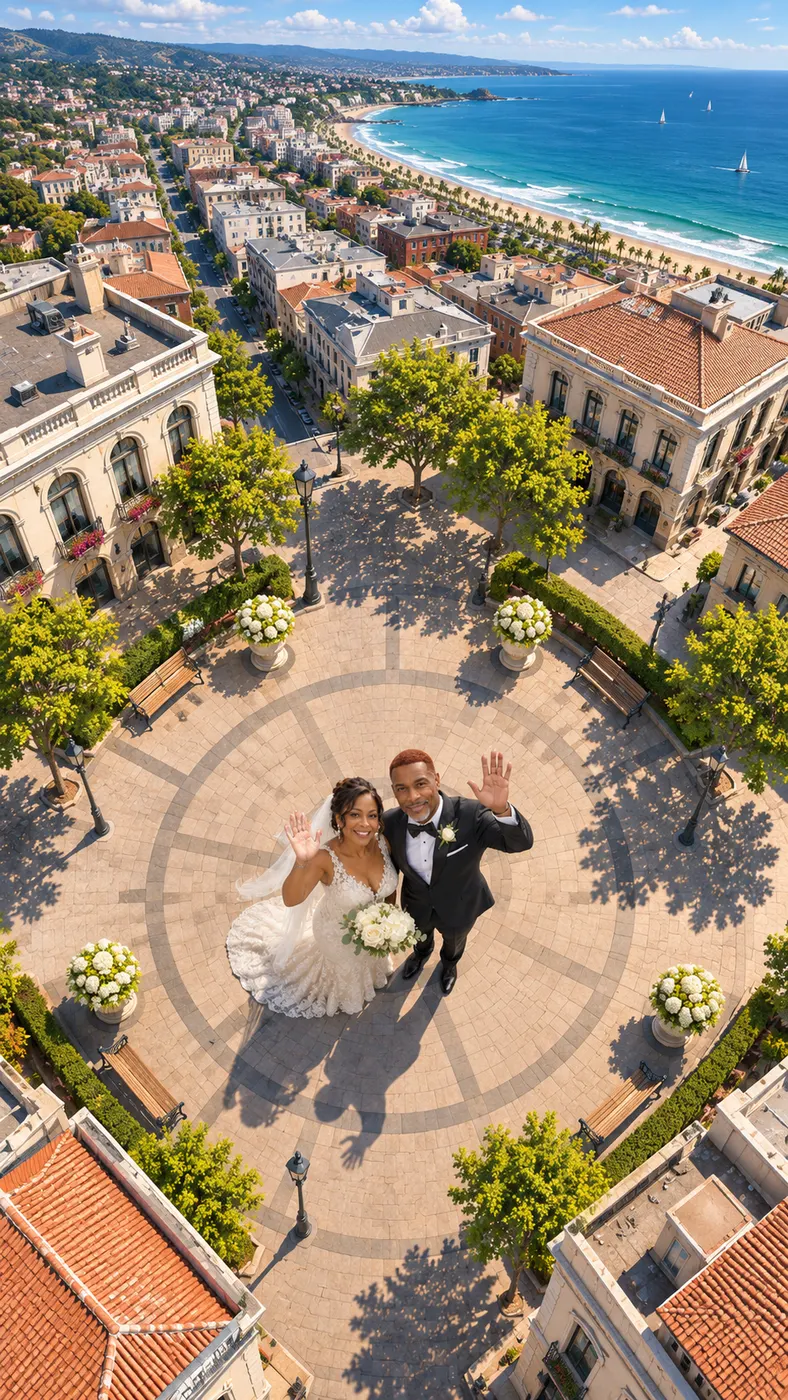
End Watch examples you can share
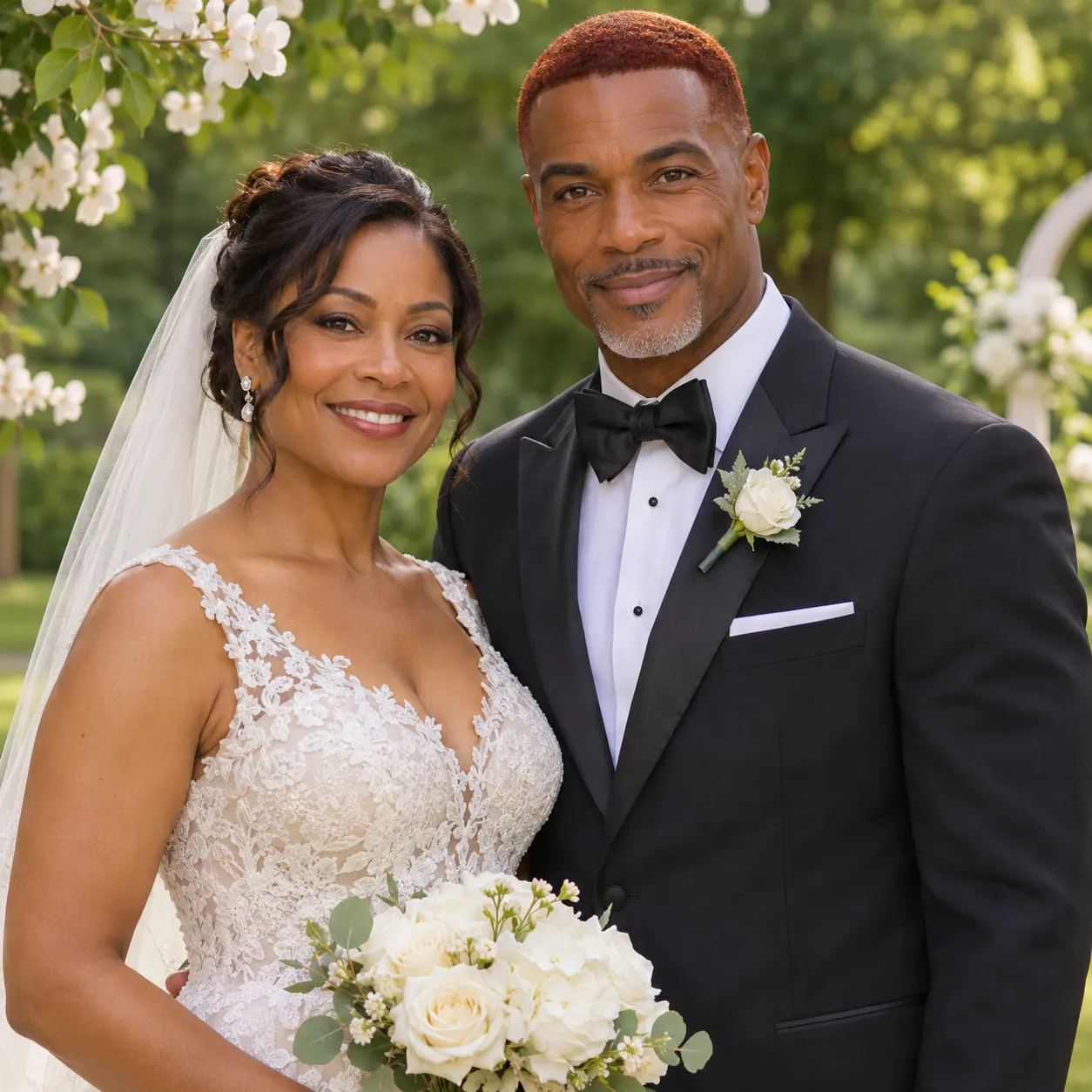
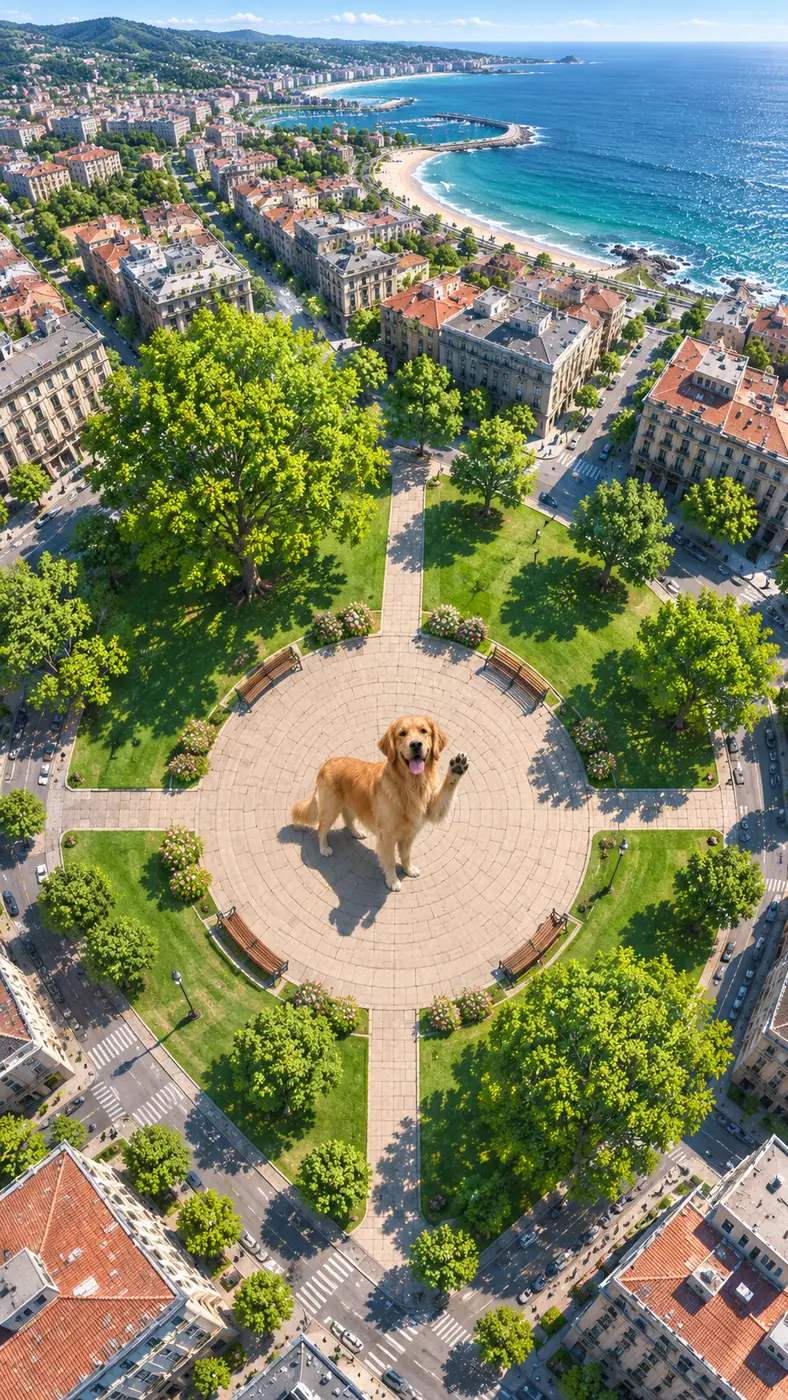
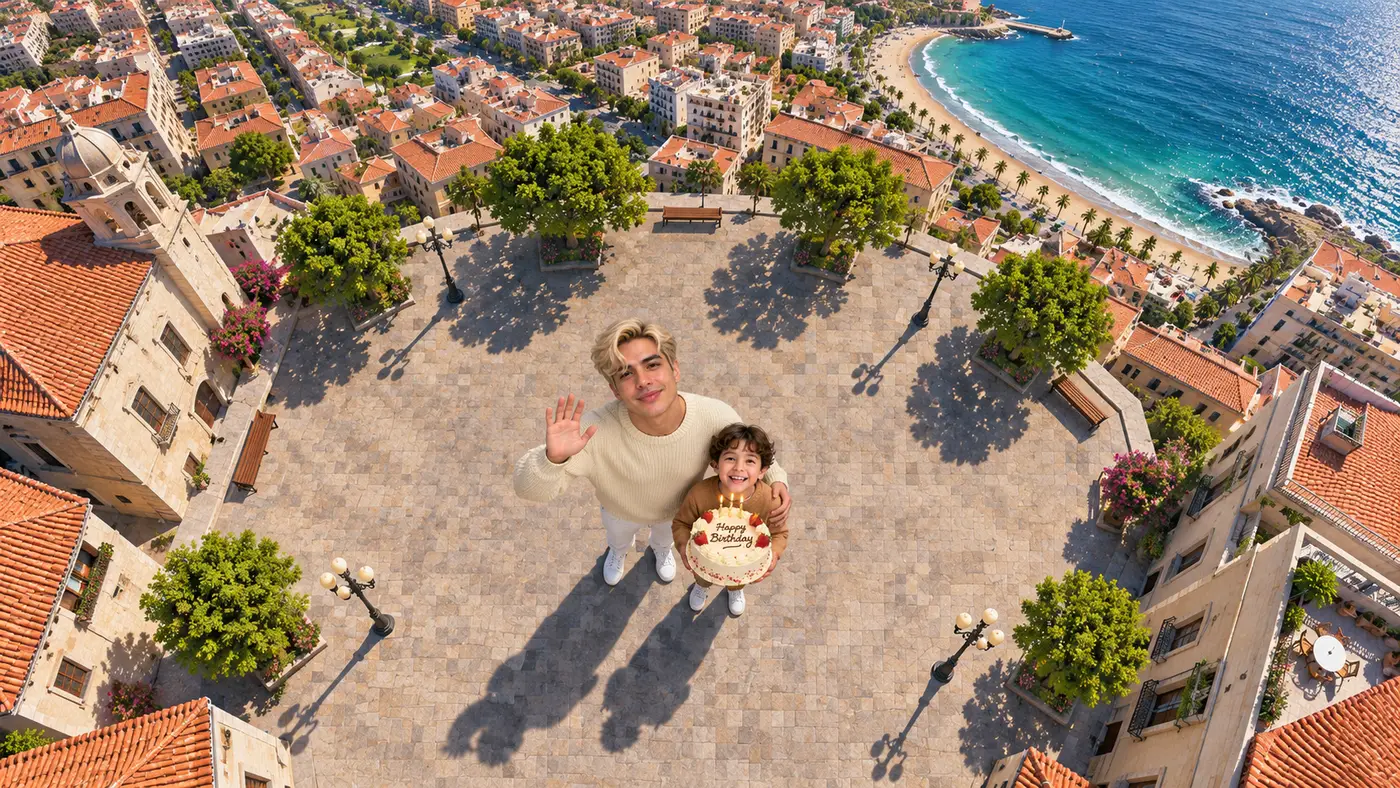
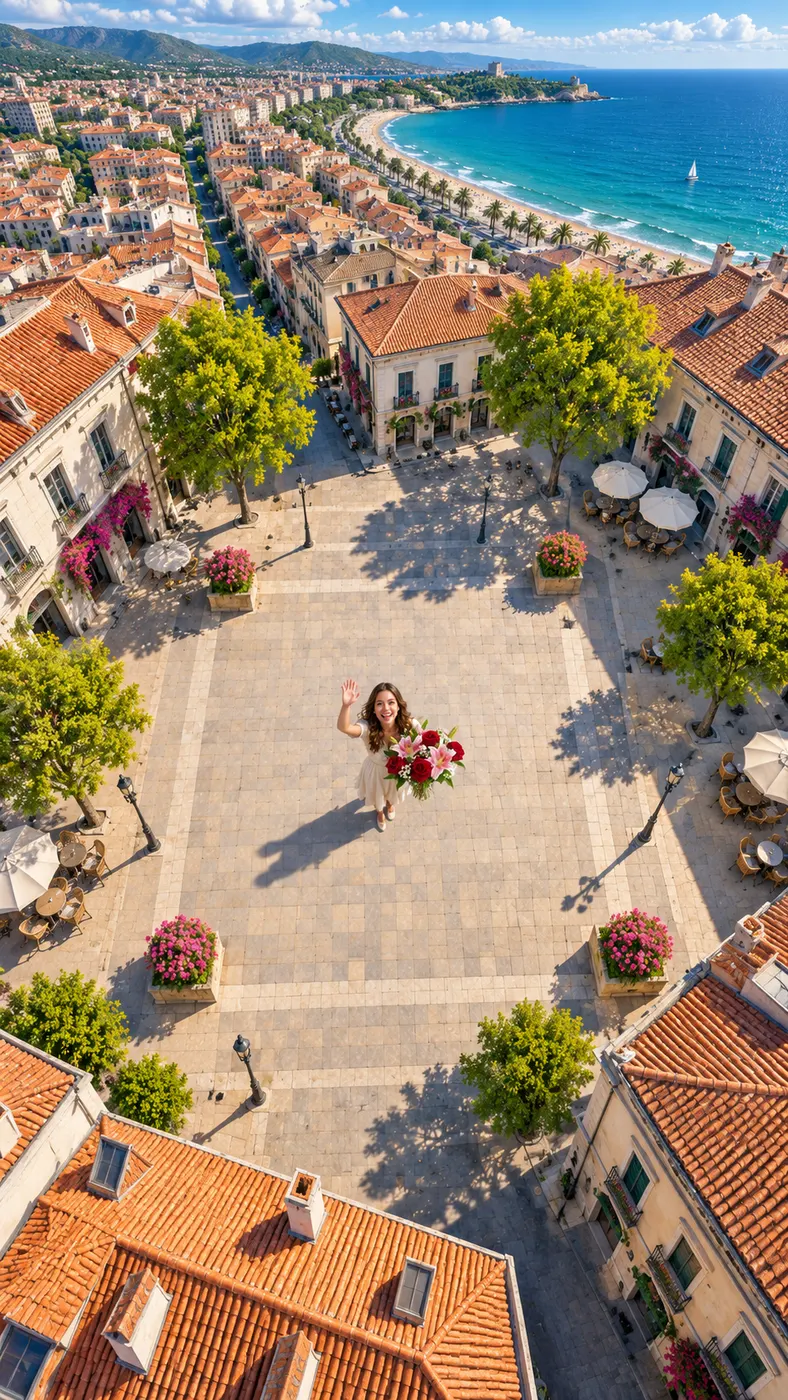
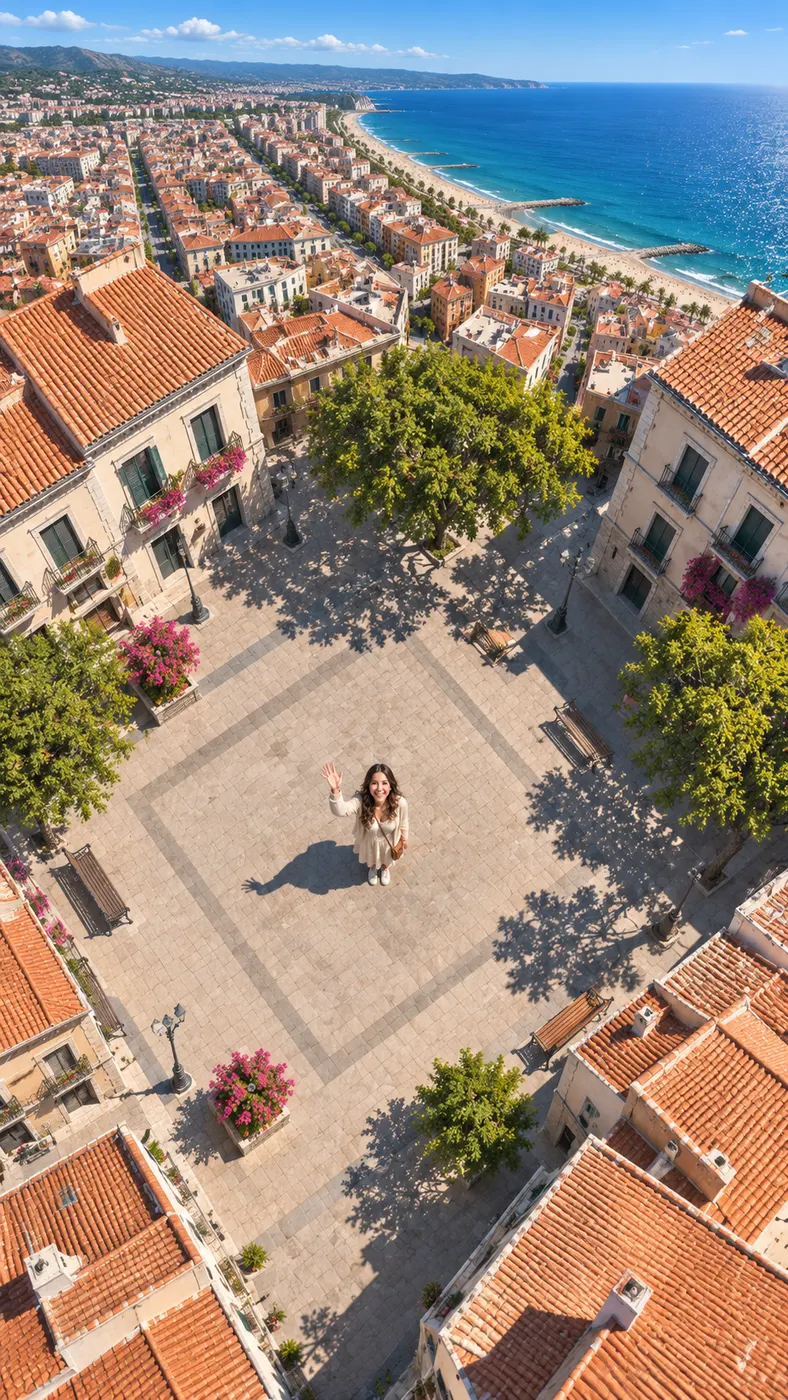
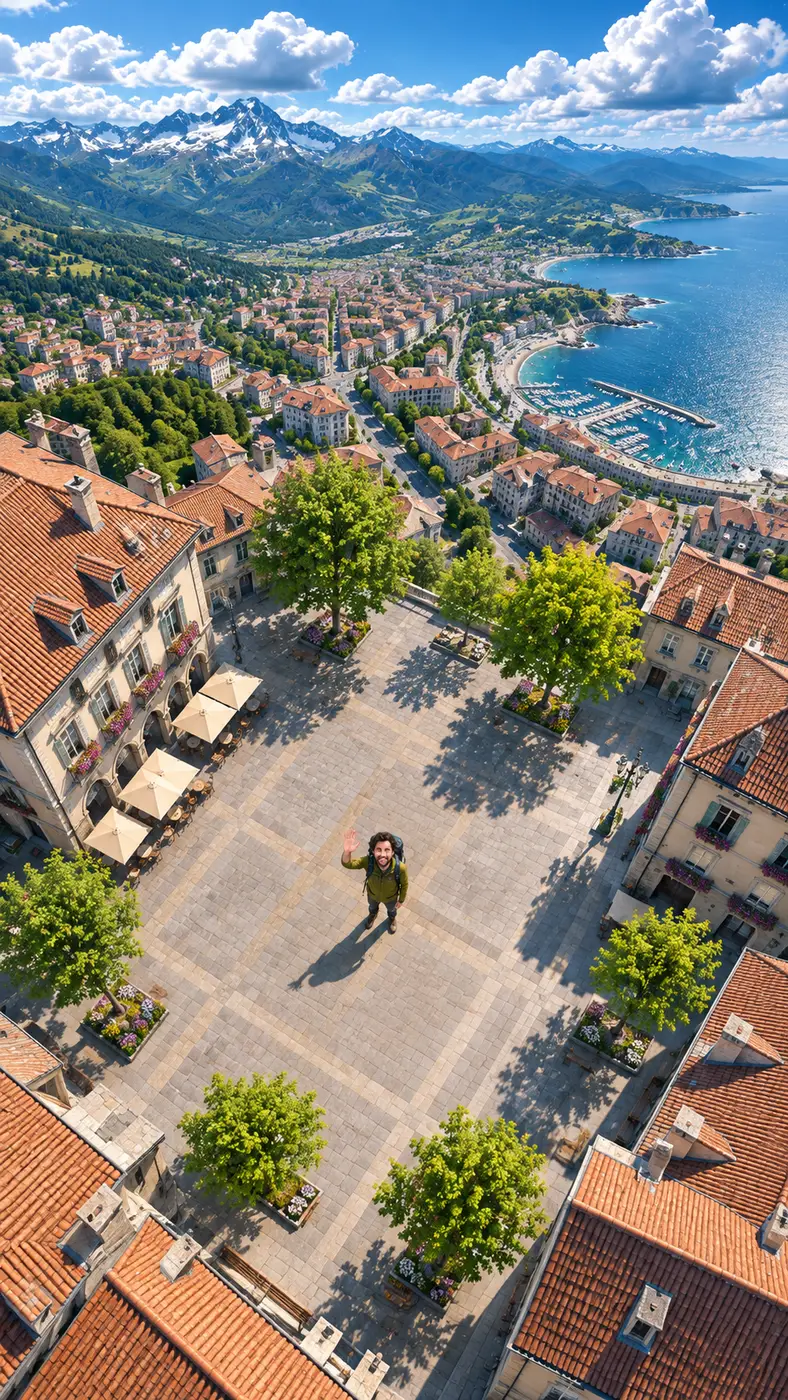
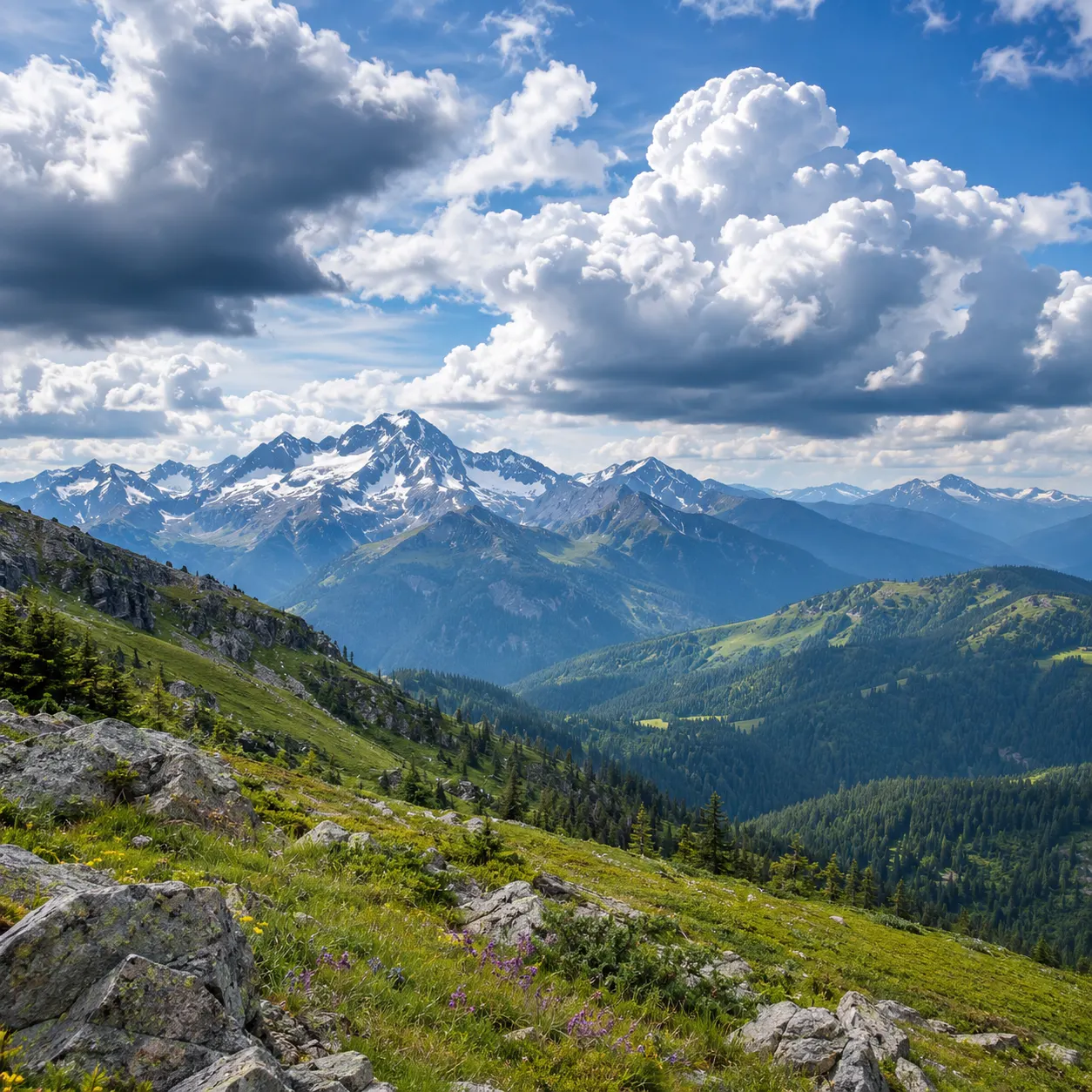
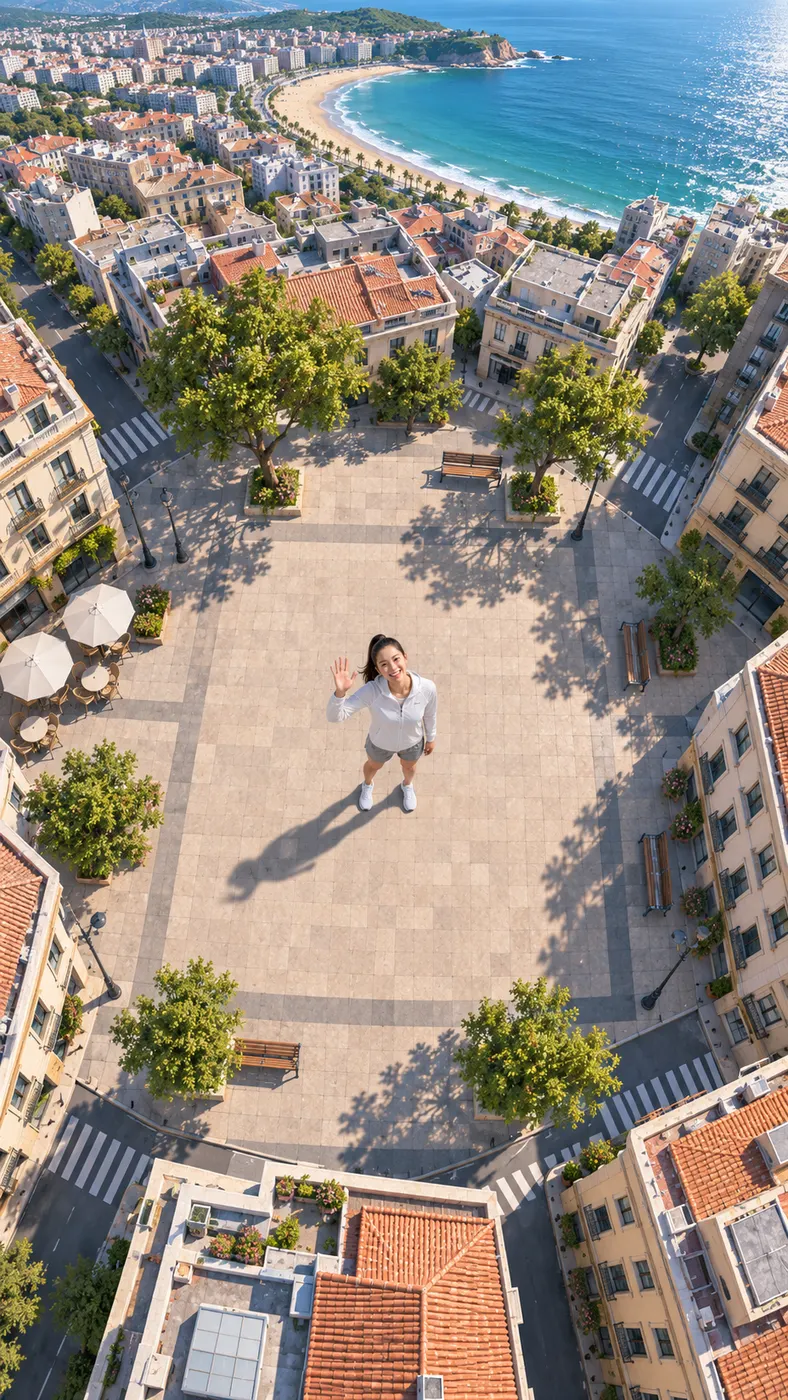
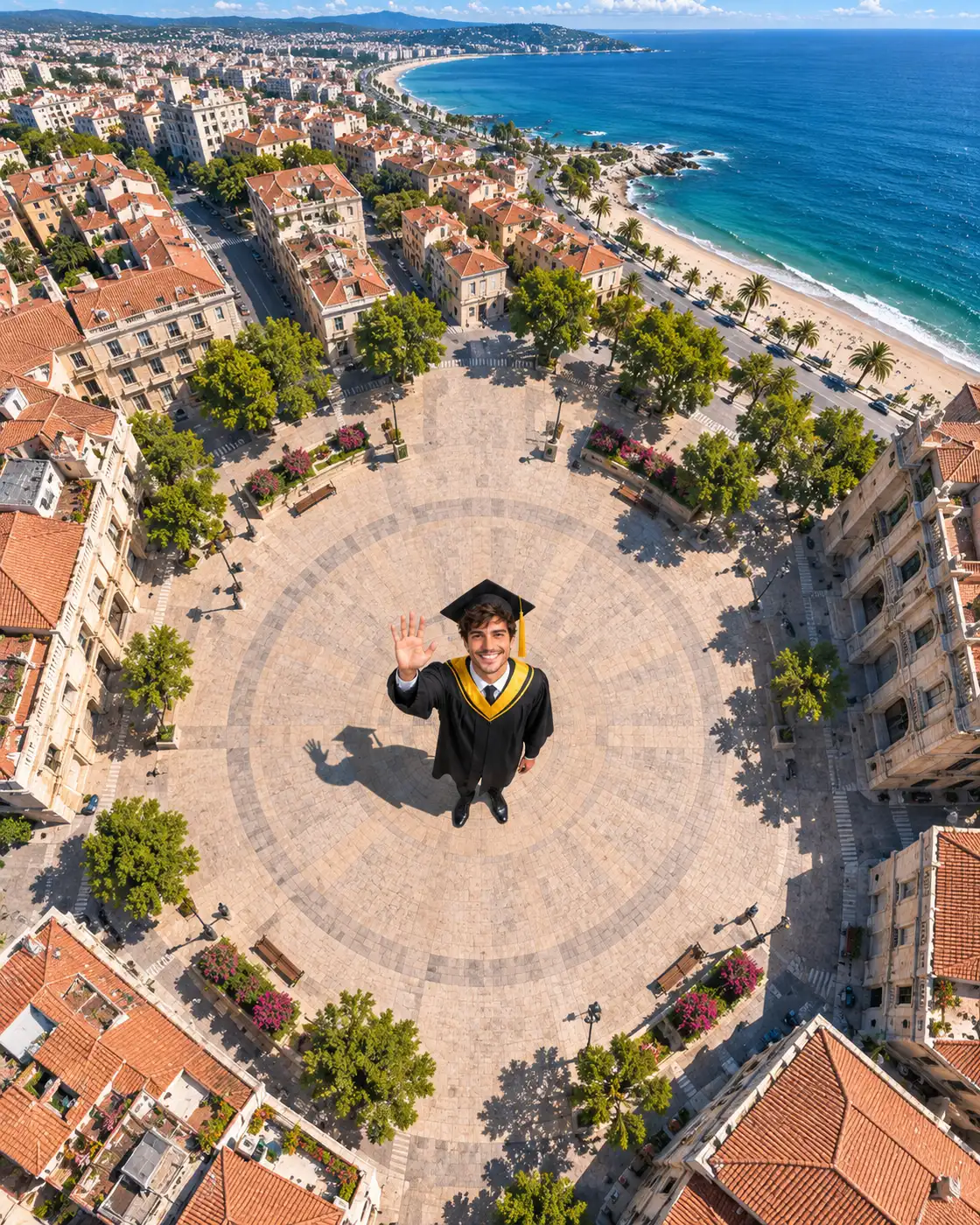
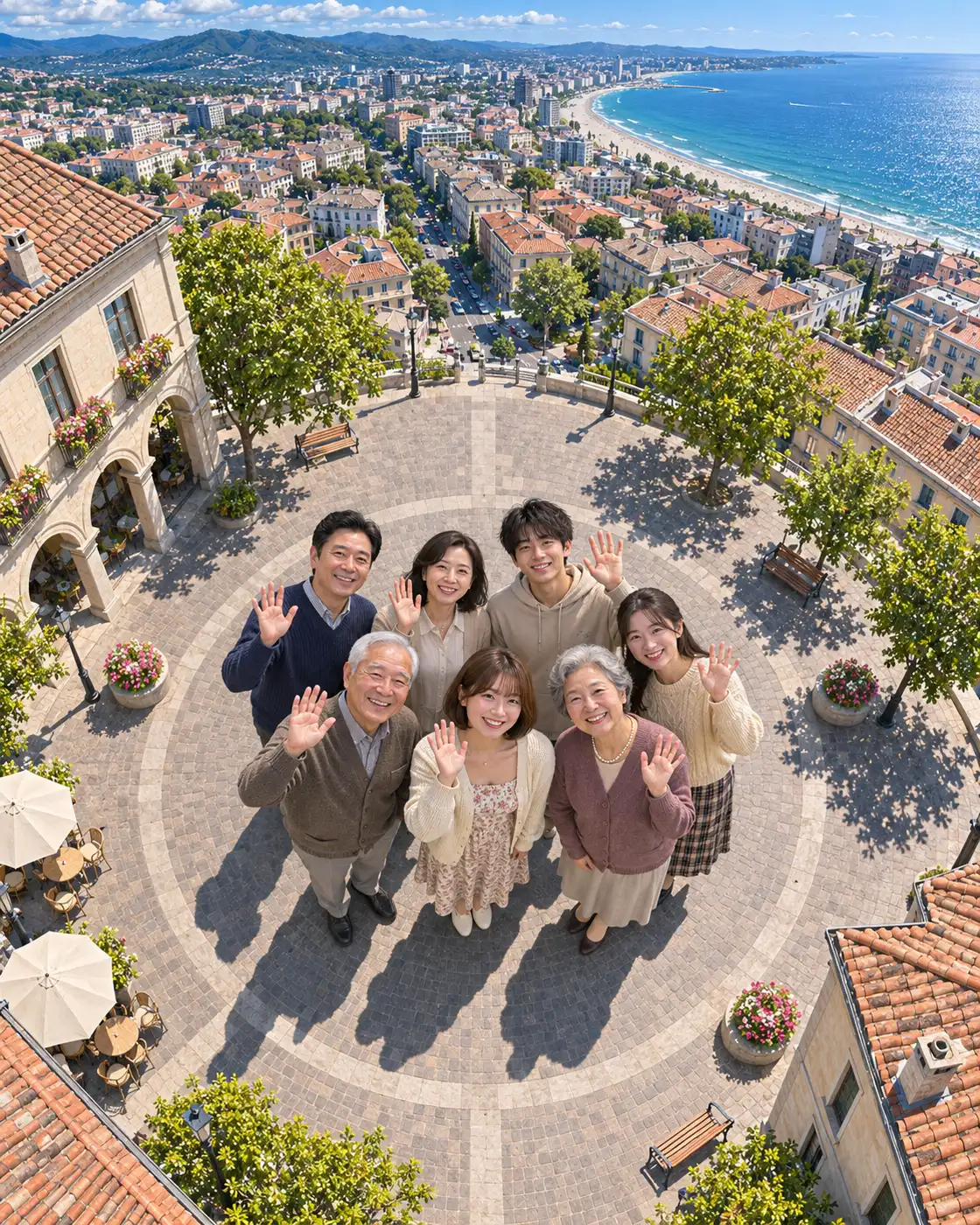
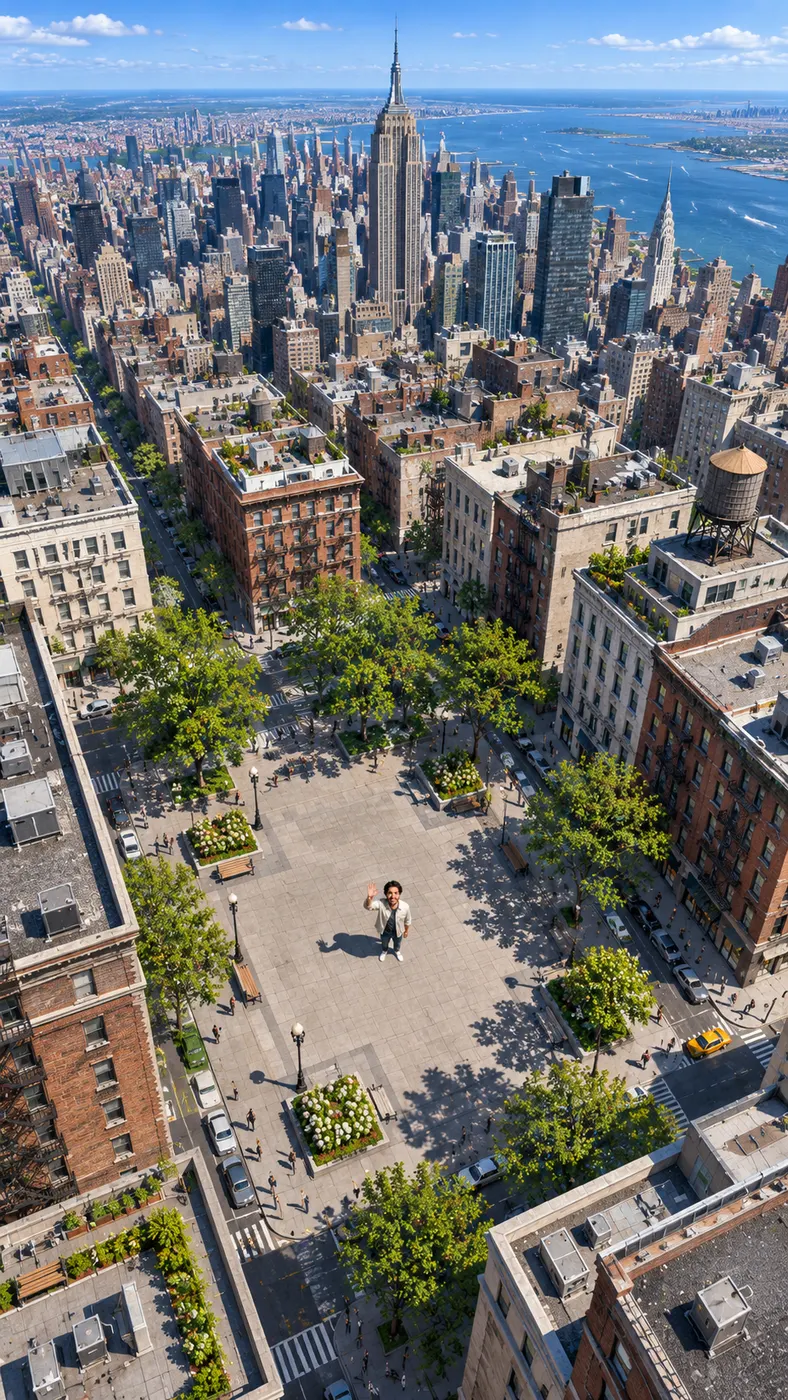
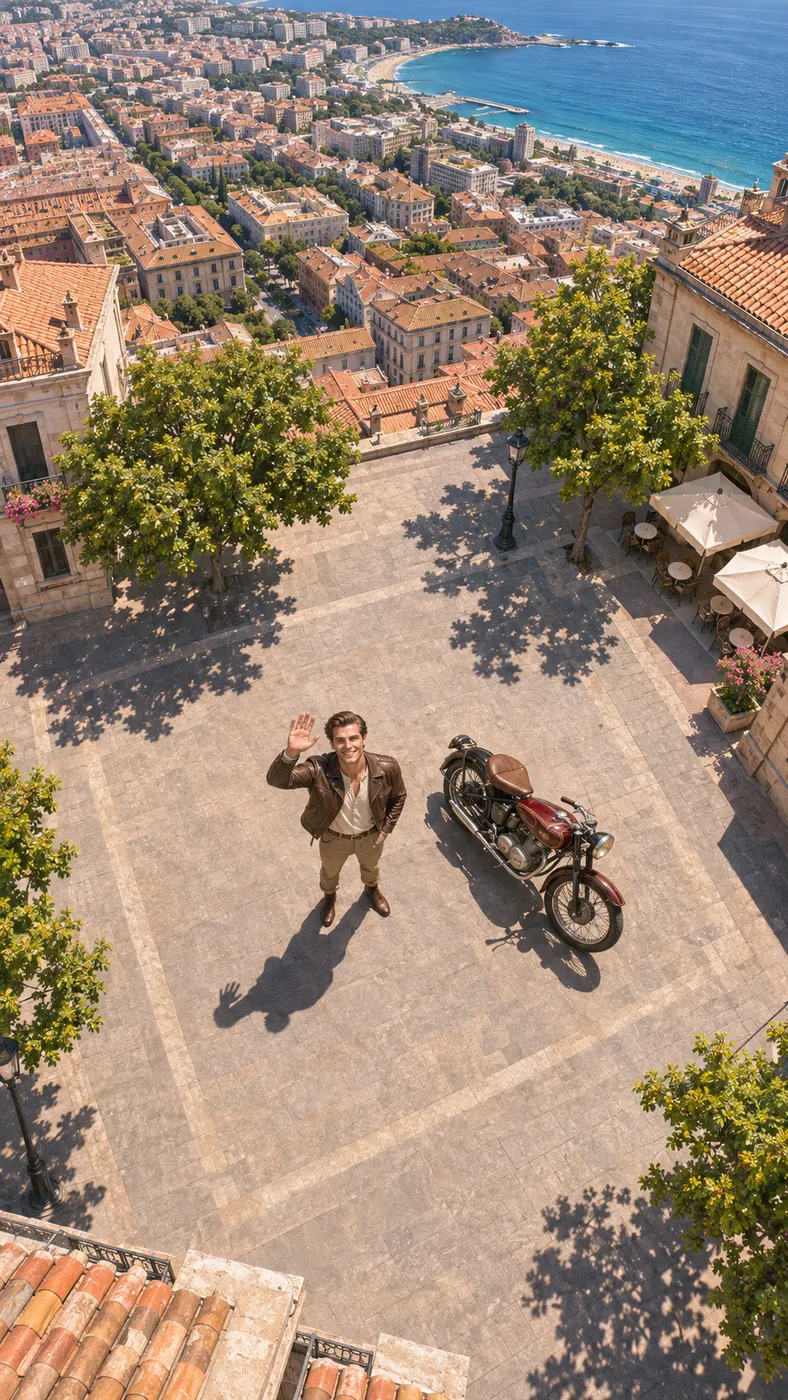
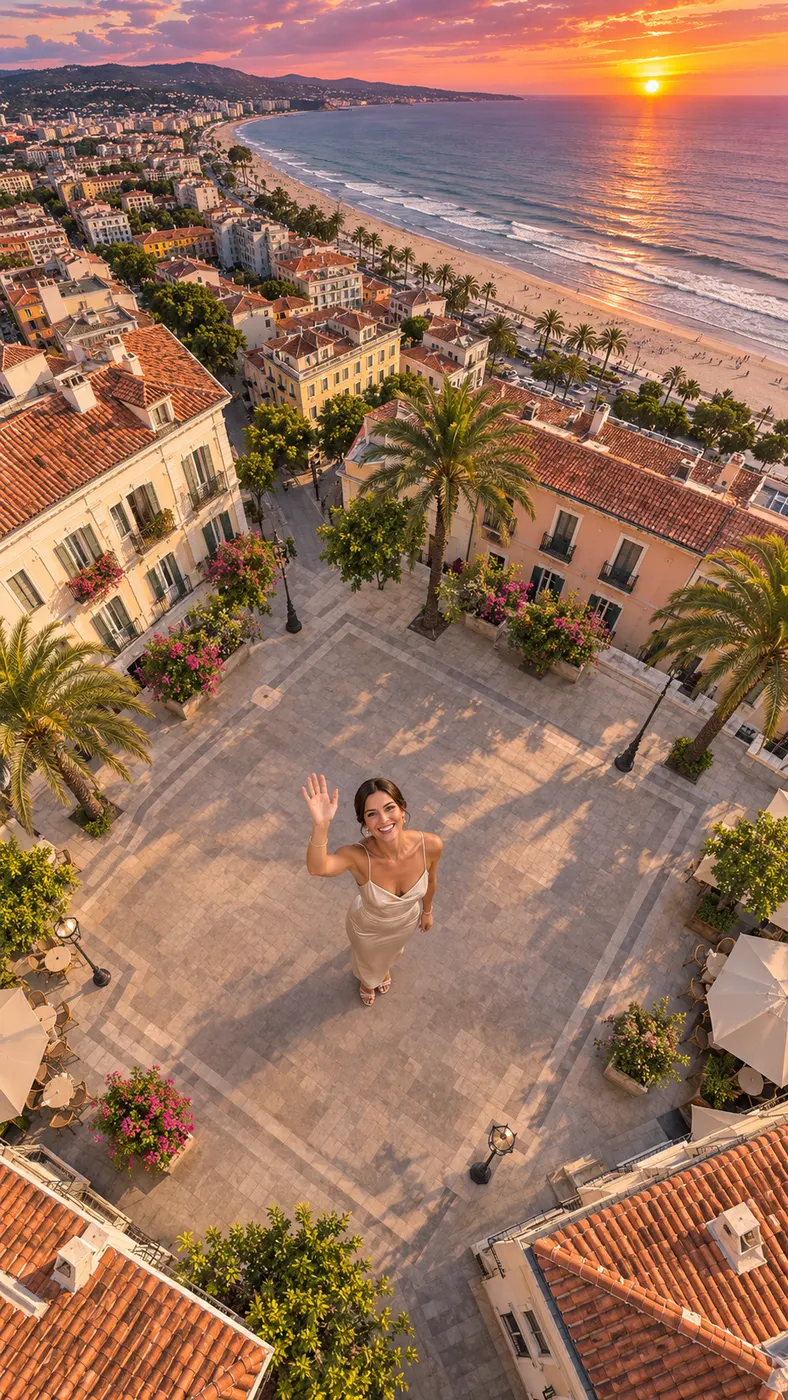
These End Watch examples show how a single portrait can become a lively vertical clip: the subject stays recognizable while the camera rises through a sunny city scene. For stronger results, compare your upload with this best photo guide, then explore more ready-made ideas in the template library.
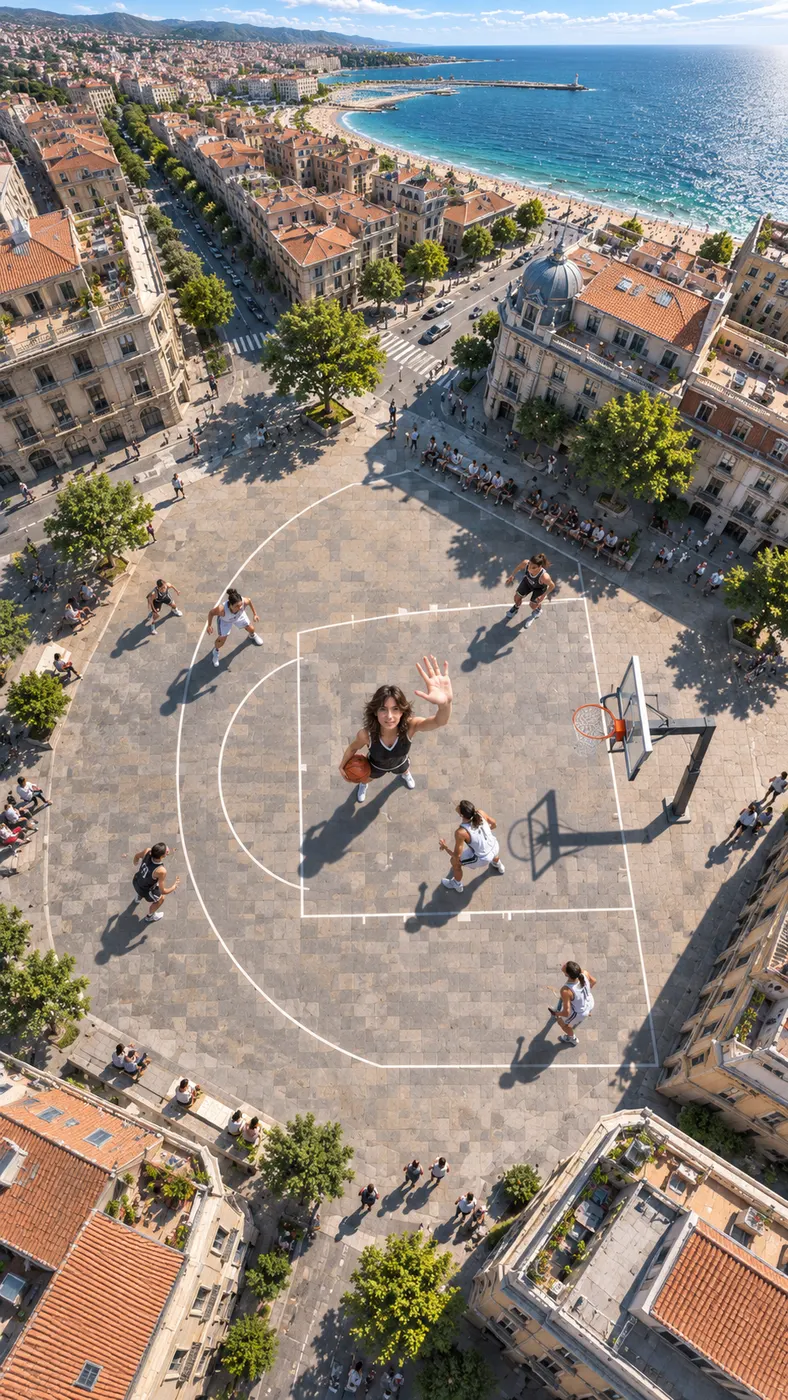
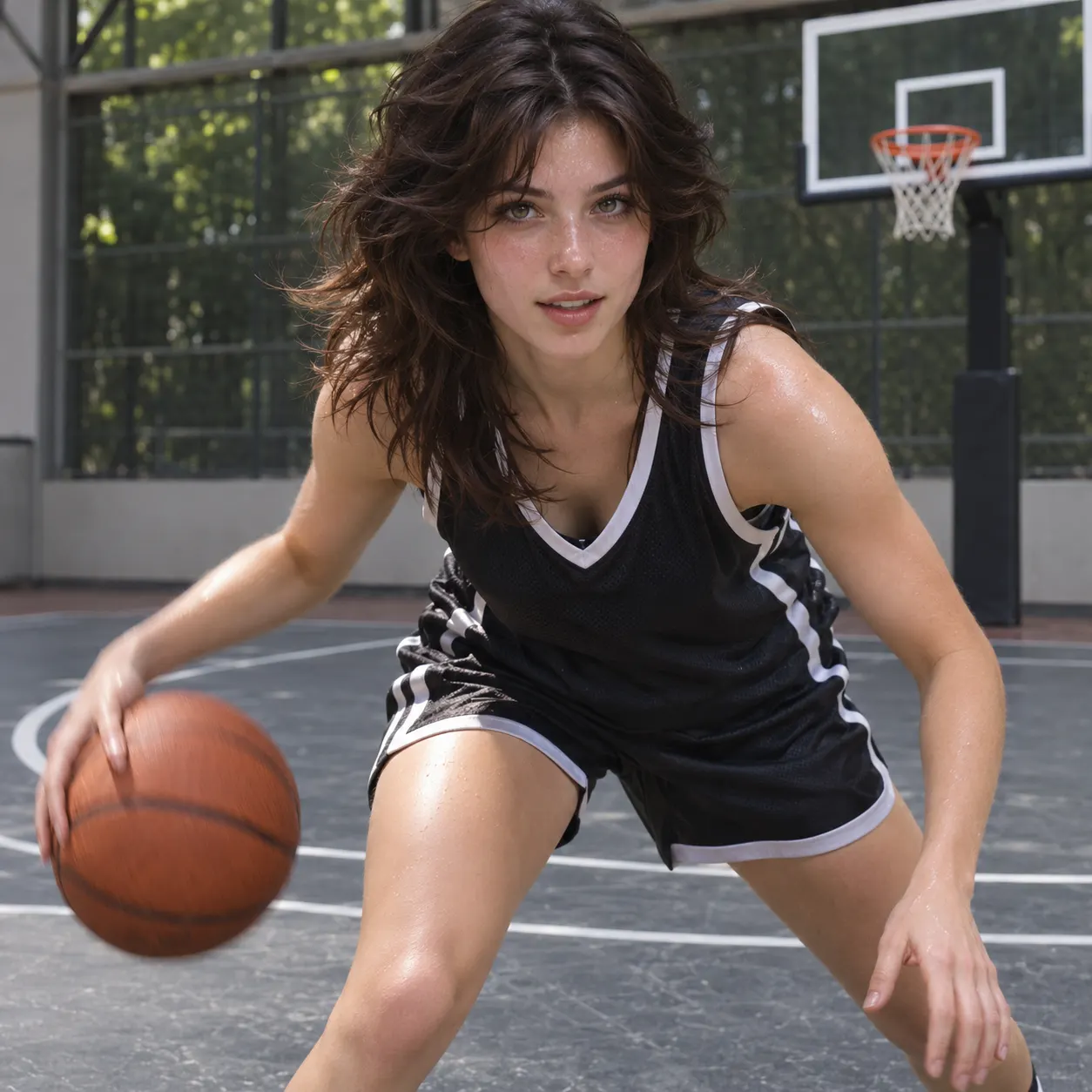
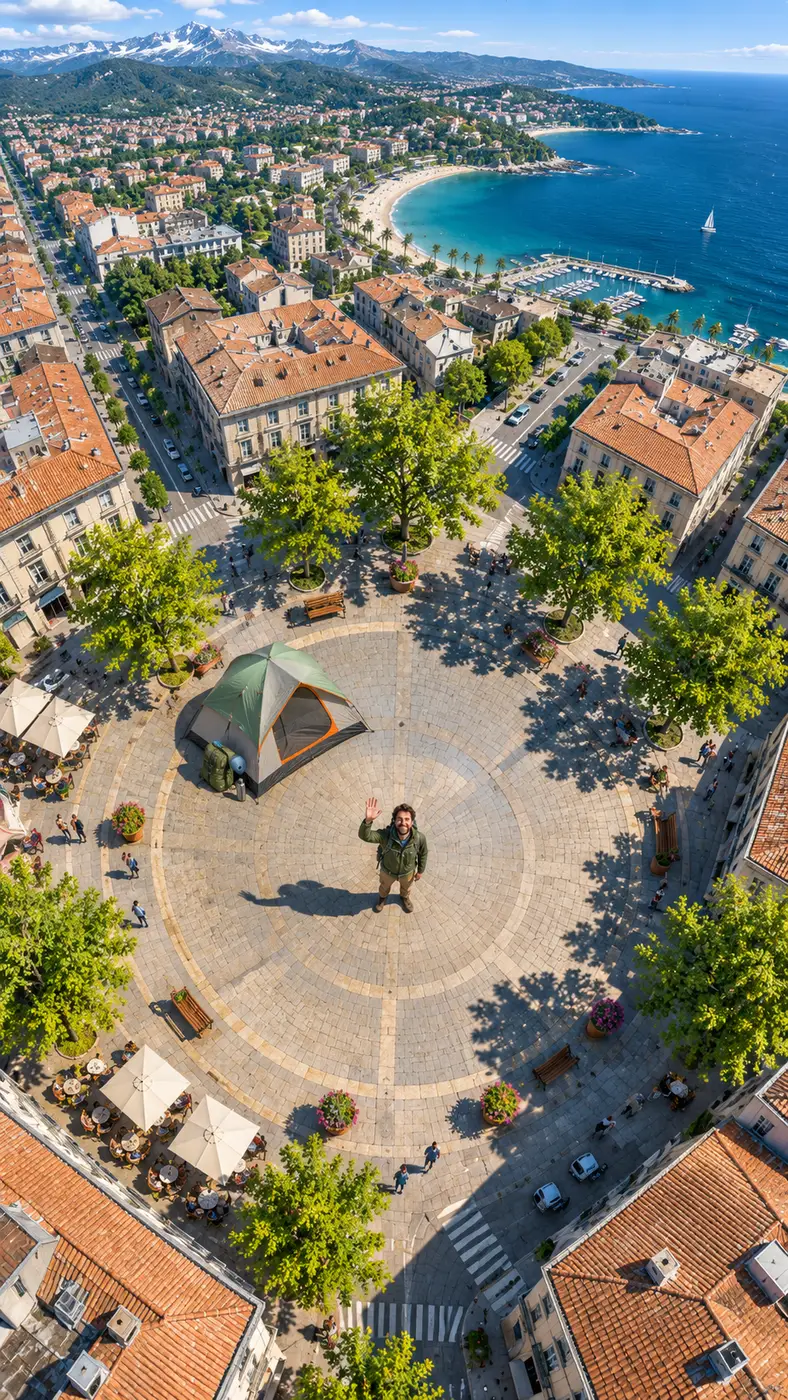
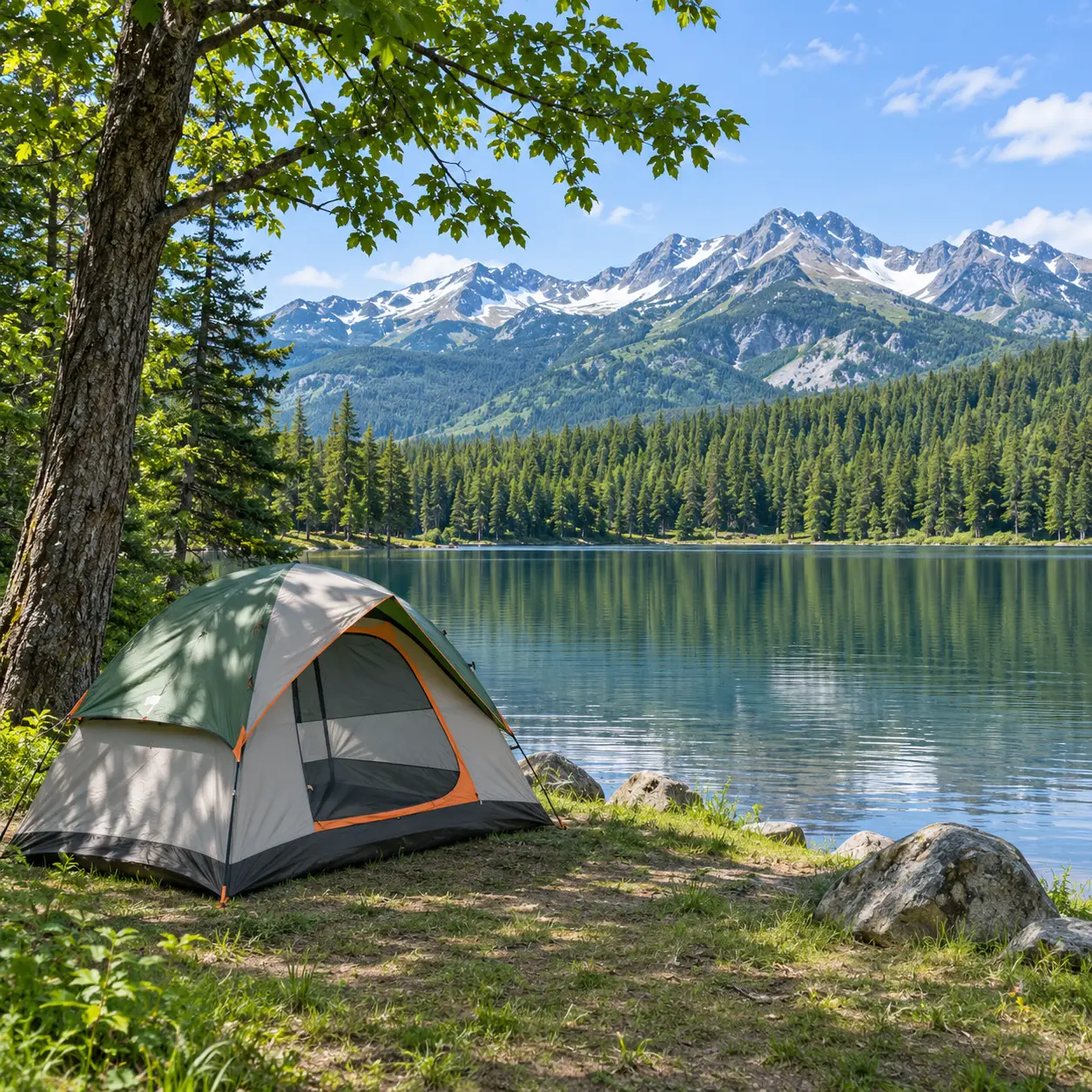








How to make an End Watch video
- 01
Upload your photo
Start with one clear image showing a solo subject or two people. Keep faces visible, avoid heavy filters, and choose a frame where the subject is easy to identify. End Watch can also work with pets or characters when the uploaded image is clear enough for the scene to preserve their appearance.
- 02
Choose a scene and detail
Select the movement or setting that fits the clip you want to share, including animation, transformation, dance, cinematic scenes, or social-video templates. End Watch also gives you an optional text field for a short addition such as clothing, lighting, or location. Keep the detail specific and brief so it supports the selected scene.
- 03
Review and unlock the result
Generate the clip, review the 5-second preview when it appears, and unlock the full 15-second video when you are ready. End Watch processing time depends on the queue, so wait for the result to finish. The listed generation cost is $2.03 or 29 credits.
What you can do with one photo
Keep the subject recognizable
The uploaded image remains the visual reference, so the original face, hairstyle, skin tone, body, and number of people stay central as the scene moves. A clear, front-facing photo gives the generator better information to work from.
Pick a scene that matches your idea
You can choose from simple motion, transformations, dances, cinematic settings, and social-ready templates. Options include bringing a photo to life, levitation, outfit changes, fireworks, concerts, comic-book styling, and more.
Use a stronger starting photo
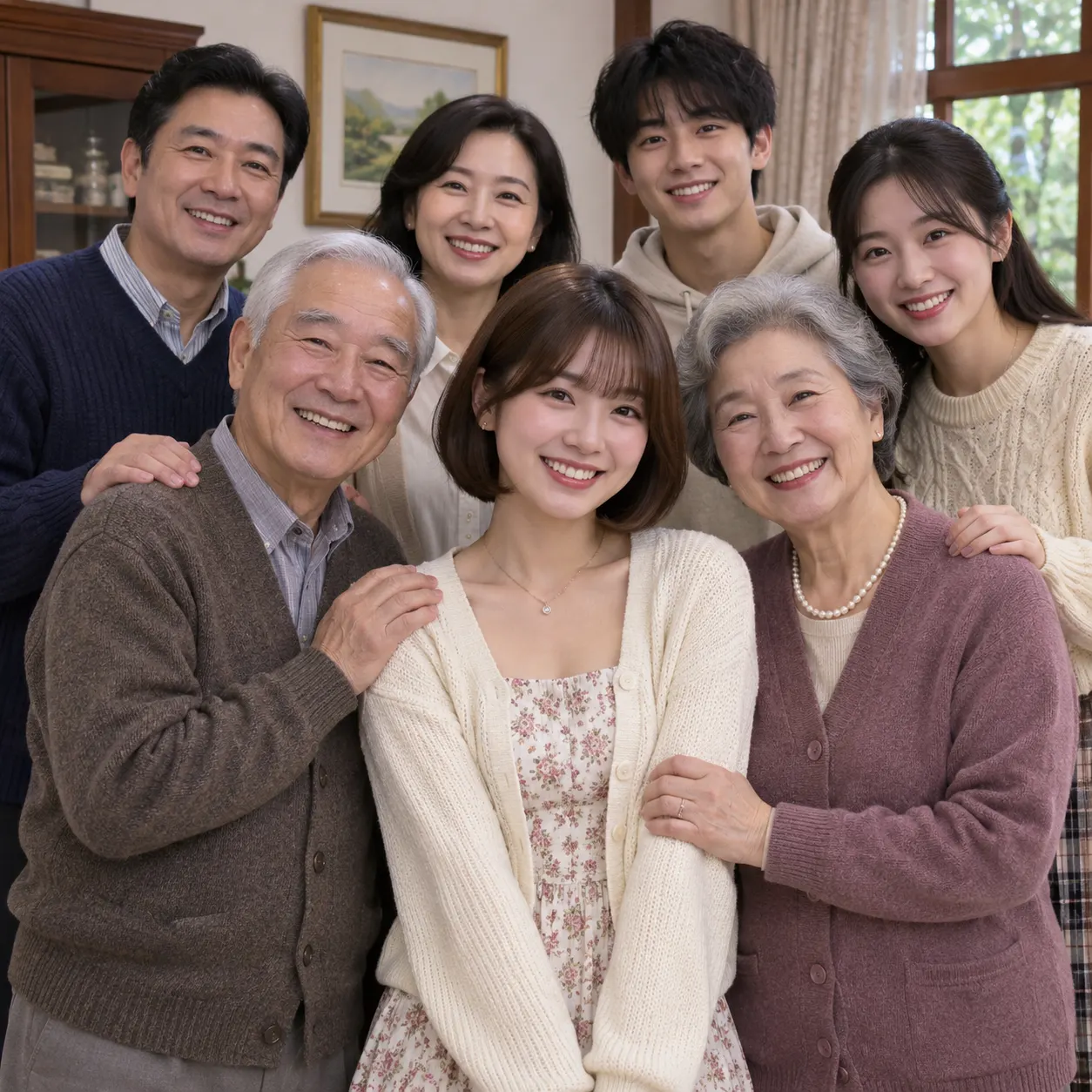
Choose a solo photo or a two-person photo with visible faces and no heavy filters. Good framing helps the result preserve recognizable details, while a cluttered or obscured face gives the scene less useful visual information.
Add one personal detail
An optional prompt lets you add a detail after choosing a scene. You can specify a red jacket, sunset lighting, or another concise detail, while the selected template supplies the main action and keeps the request easy to follow.
Know the generation cost
One generation is priced at $2.03 or 29 credits, and the standard output uses 480p. Check the displayed cost before starting, especially when you want to create several variations from different photos.
End Watch questions answered
What is End Watch?
End Watch turns one clear photo into a vertical AI video. You choose a scene such as animation, a transformation, a dance, a cinematic setting, or a social-video template, and the uploaded subject remains the visual focus.
Can I use this generator with a pet or character?
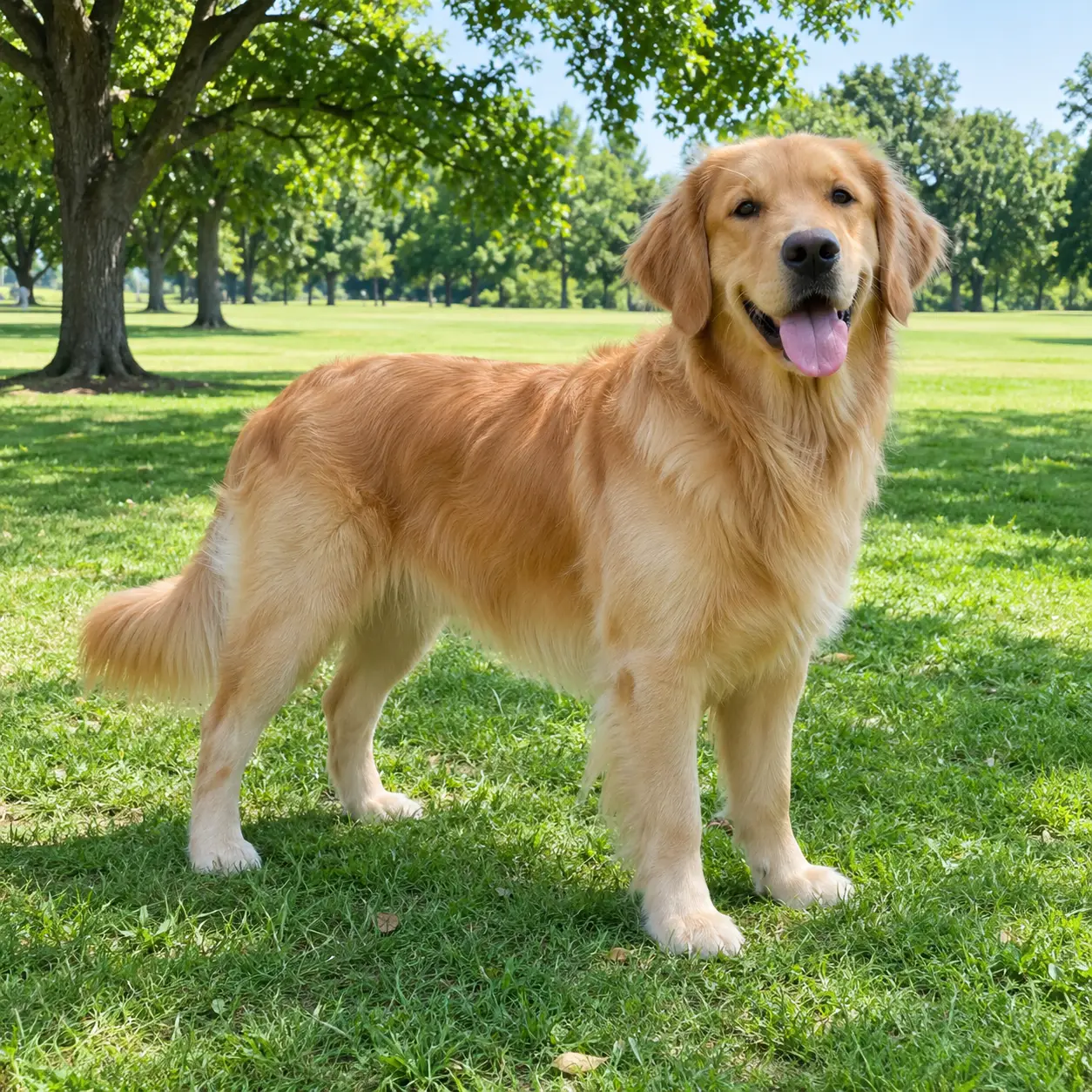
Yes. The generator accepts a photo showing one person, two people, pets, or characters. Use a clear image with the main subject visible so the result has a strong reference for appearance and movement.
Is End Watch free?
A free run is not available. Each generation costs $2.03 or 29 credits, and the page shows the applicable cost before you start.
How long does End Watch take to generate?
There is no fixed processing time stated for End Watch. The result depends on the generation queue, so keep the page open until the preview or completed vertical video appears.
What photo does End Watch need?
Use one clear photo with a visible face, a solo subject or two people, and no heavy filters. A straightforward portrait or full-body frame gives the selected scene a useful visual reference.
Can I use someone else’s photo?
You can use another person’s photo only when you have permission to use it. Make sure the image is appropriate to share and that everyone shown understands how you plan to use the generated video.
Turn a photo into your next clip
Open the End Watch generator, upload a clear photo, choose the scene that fits your idea, and add a short personal detail before creating the video.